AWS Storage Blog
Automate root cause analysis for AWS Backup failures with AWS DevOps Agent
AWS Backup centralizes data protection in your organization across hundreds of accounts and AWS Regions for more than 20 AWS services. At that scale, some jobs fail, and triaging each failure manually can take days. Most failures trace back to something small, such as a role missing permission, an encryption key policy blocking the backup service, a quota you’ve reached, or a resource that changed mid-job.
When jobs fail quietly and at scale, the risk can compound into unrecoverable data loss. An on-call engineer opens the failed job, reads the status message, and cross-references it with AWS CloudTrail. From there they check the AWS Identity and Access Management (IAM) policies on the backup role, the AWS Key Management Service (AWS KMS) key policy, and the state of the resource to find the root cause. In a multi-account organization with cross-account backup copies, the evidence for a single silent failure can sit in an account and AWS Region the engineer rarely touches. Explaining a failure comes down to reading a few sources and matching them to a known cause, the same kind of investigation AWS DevOps Agent already runs for other operational services. AWS DevOps Agent is an autonomous agent that troubleshoots operational failures like a seasoned engineer by connecting signals across services, forming a hypothesis, and providing root cause with a fix.
This post walks through connecting AWS DevOps Agent to your AWS Backup environment, so it can autonomously diagnose failures. Investigations that consume hours of an on-call engineer’s time complete in minutes, narrowing your exposure window and freeing your team to act on the fix instead of the diagnosis. The same pattern extends beyond backups, and investigation is only the first step. The next is letting the agent remediate what it finds.
Solution overview
This solution runs AWS DevOps Agent from a Space in your organization’s delegated administrator account. Each AWS Backup workload account connects to that Space as a secondary account through a cross-account IAM role with an AWS managed IAM policy, which gives the agent read-only access to investigate resources wherever they live. When a backup job or copy job fails in any workload account, AWS Backup emits the event and a rule forwards it to the default Amazon EventBridge event bus in the delegated administrator account.
Then the same event bus invokes an AWS Lambda function that calls the AWS DevOps Agent webhook and starts an investigation automatically. The agent correlates the failed job status message with CloudTrail, IAM policies, KMS key policies, and resource state across the relevant account and Region, then produces a root cause and a recommended remediation. When the investigation is complete, AWS DevOps Agent posts the summary to your Slack channel through its integration and emits an investigation event to the EventBridge event bus. AWS DevOps Agent is designed to act as a member of your team by participating in your team’s existing communication channels. In this post, we implement the Slack integration.
The following diagram illustrates the solution architecture.
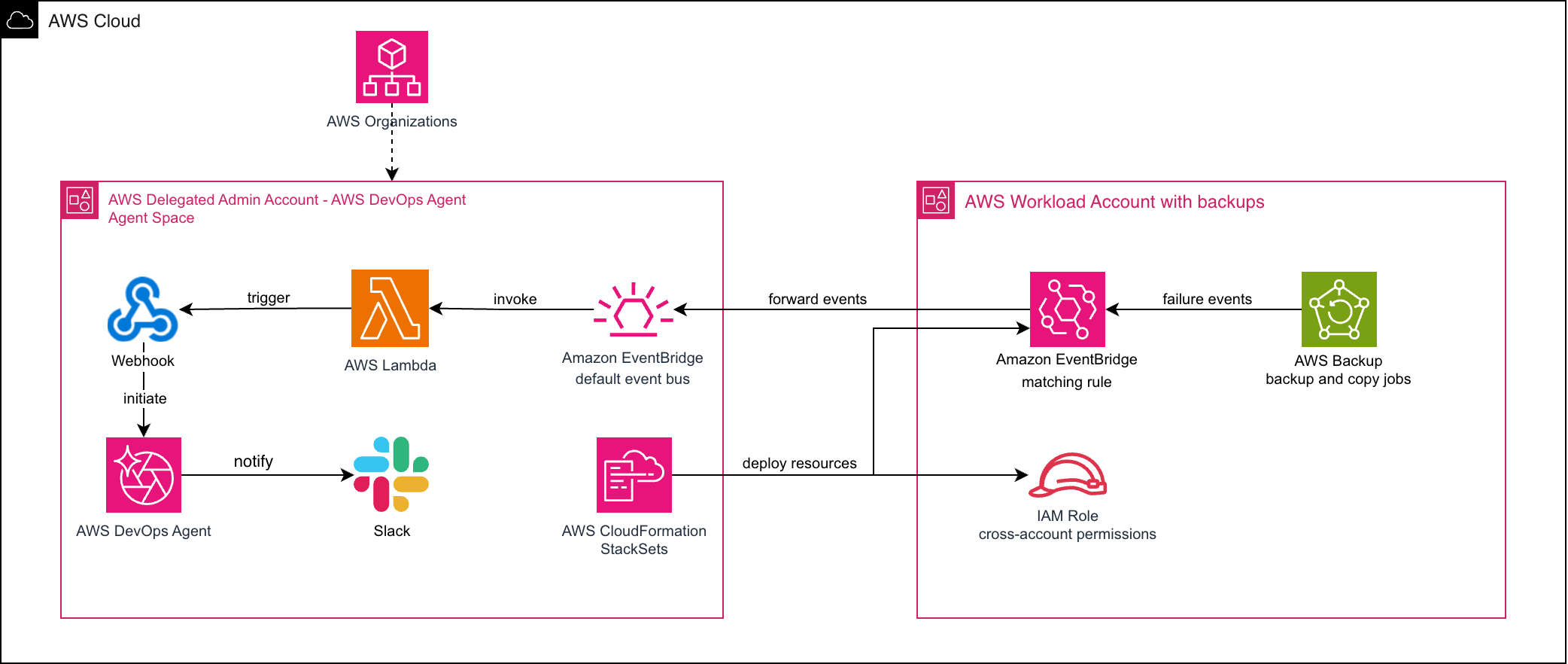
Figure 1: Architectural diagram of the solution
The solution flow consists of the following steps:
- A backup or copy job fails in a workload account (any Region).
- An EventBridge rule matches the FAILED, ABORTED, or EXPIRED state and forwards the event to the delegated administrator’s central event bus.
- An EventBridge rule in the delegated administrator account invokes a Lambda function.
- The Lambda function signs the event and posts it to the AWS DevOps Agent webhook.
- AWS DevOps Agent assumes a cross-account role to access workload account, investigates, and posts the root cause to a designated Slack channel.
Prerequisites
Before implementing the solution, complete the following setup:
- Register a delegated administrator account for AWS DevOps Agent.
- Configure a central event bus in the delegated administrator account with a resource policy that allows member accounts in the organization to put events.
- Deploy a cross-account IAM role in each workload account for EventBridge cross-account event forwarding.
- Deploy cross-account read-only IAM roles in each workload account for the AWS DevOps Agent investigations.
- Deploy an IAM role in the delegated administrator account for the Lambda function and AWS DevOps Agent.
- Have AWS Management Console access to AWS DevOps Agent, EventBridge, IAM, AWS CloudFormation StackSets, and Lambda.
Deploy AWS DevOps Agent
The first step is to deploy an AWS DevOps Agent in the AWS account where your AWS Backup investigations are centralized. We created the agent in the delegated administrator account to centrally deploy and manage AWS resources using CloudFormation StackSets.
Create Agent Space
On the AWS DevOps Agent console, create an Agent Space. An Agent Space holds the agent’s configuration, connected secondary AWS accounts, and capability providers such as Slack. You associate the delegated administrator account with the Space using an IAM role the agent assumes to read your environment, which has cross-account trust established with the workload accounts.
To create the Agent Space, complete the following steps:
- On the AWS DevOps Agent console, choose Agent Spaces in the navigation pane, then choose Create Agent Space.
- For Name, enter BackupInvestigations.
- Under IAM role, choose Create a new role (or select an existing role).
- Attach the AWS managed policy AIDevOpsAgentAccessPolicy to the role.
- Confirm the role’s trust policy allows the aidevops.amazonaws.com service principal to assume it, scoped to this account and Agent Space:
{
  "Version": "2012-10-17",
  "Statement": [
    {
      "Effect": "Allow",
      "Principal": { "Service": "aidevops.amazonaws.com" },
      "Action": "sts:AssumeRole",
      "Condition": {
        "StringEquals": { "aws:SourceAccount": "<ACCOUNT_ID>" },
        "ArnLike": { "aws:SourceArn": "arn:aws:aidevops:<REGION>:<ACCOUNT_ID>:agentspace/*" }
      }
    }
  ]
} - Choose Create Agent Space. When it finishes, note the Agent Space ID shown in the details pane.
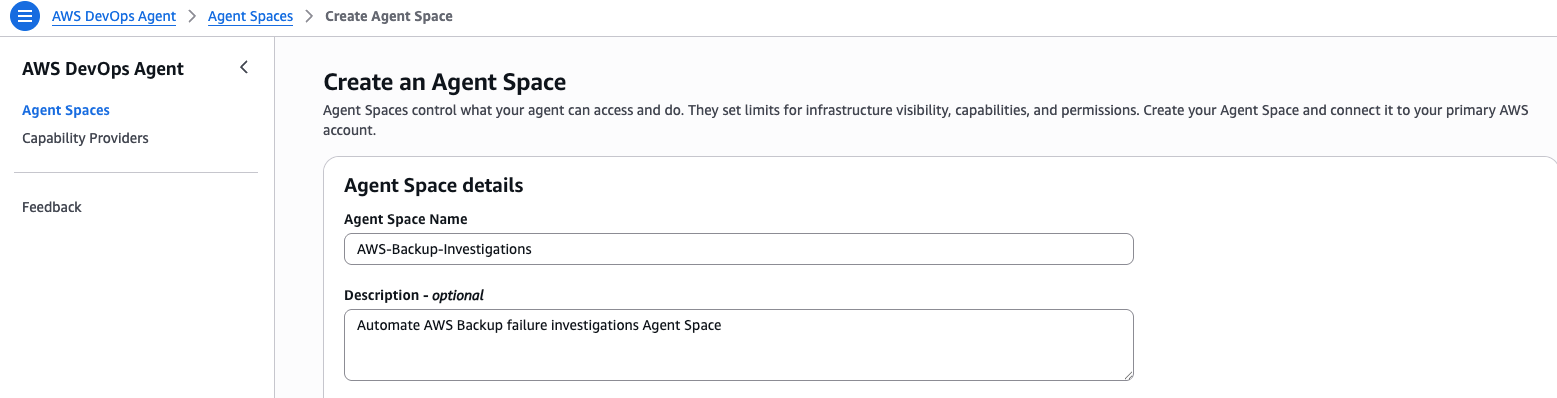 Figure 2: Creating the BackupInvestigations Agent Space on the AWS DevOps Agent console
Create webhook
The webhook is how your automation starts an investigation. You use an HMAC webhook so that every request is cryptographically signed, letting the agent verify that the request is coming from the Lambda function. To create the webhook and store its credentials, complete the following steps:
- On the AWS DevOps Agent console, open your BackupInvestigations Agent Space and choose the Webhooks tab.
- Choose Create webhook and select HMAC as the authentication type.
- Choose Create. The console displays a webhook URL and a shared secret. Copy both now — the secret is shown only once.
- Store the credentials in AWS Secrets Manager so the Lambda function can read them at runtime and the secret never appears in your code or logs. Run the following command, replacing <WEBHOOK_URL> and <WEBHOOK_SECRET> with the values from the previous step:
aws secretsmanager create-secret \ --name devops-agent/backup-webhook \ --secret-string '{"webhookUrl":"<WEBHOOK_URL>","webhookSecret":"<WEBHOOK_SECRET>"}' \ --region <REGION>
The secret name must be devops-agent/backup-webhook because the Lambda function reads the secret by this name.
 Figure 3: Generating the HMAC webhook URL and secret for the Agent Space
Connect secondary AWS accounts
By default, the agent can only investigate the account it runs in. To investigate resources across multiple AWS accounts in your organization, we need to add the secondary accounts to the agent Space. We need to ensure that the secondary accounts have an IAM role with the following AWS managed AIDevOpsAgentAccessPolicy policy and the following trust policy.
{
    "Version": "2012-10-17",
    "Statement": [
        {
            "Effect": "Allow",
            "Principal": {
                "Service": "aidevops.amazonaws.com"
            },
            "Action": "sts:AssumeRole",
            "Condition": {
                "StringEquals": {
                    "aws:SourceAccount": "<DEVOPSAGENT_ACCOUNT_ID>"
                },
                "ArnEquals": {
                    "aws:SourceArn": "<DEVOPS_AGENT_SPACE_ARN>"
                }
            }
        }
    ]
}
Create a role, and add the trust policy as seen in the following figure. Replace the AWS DevOps Agent account ID and ARN.
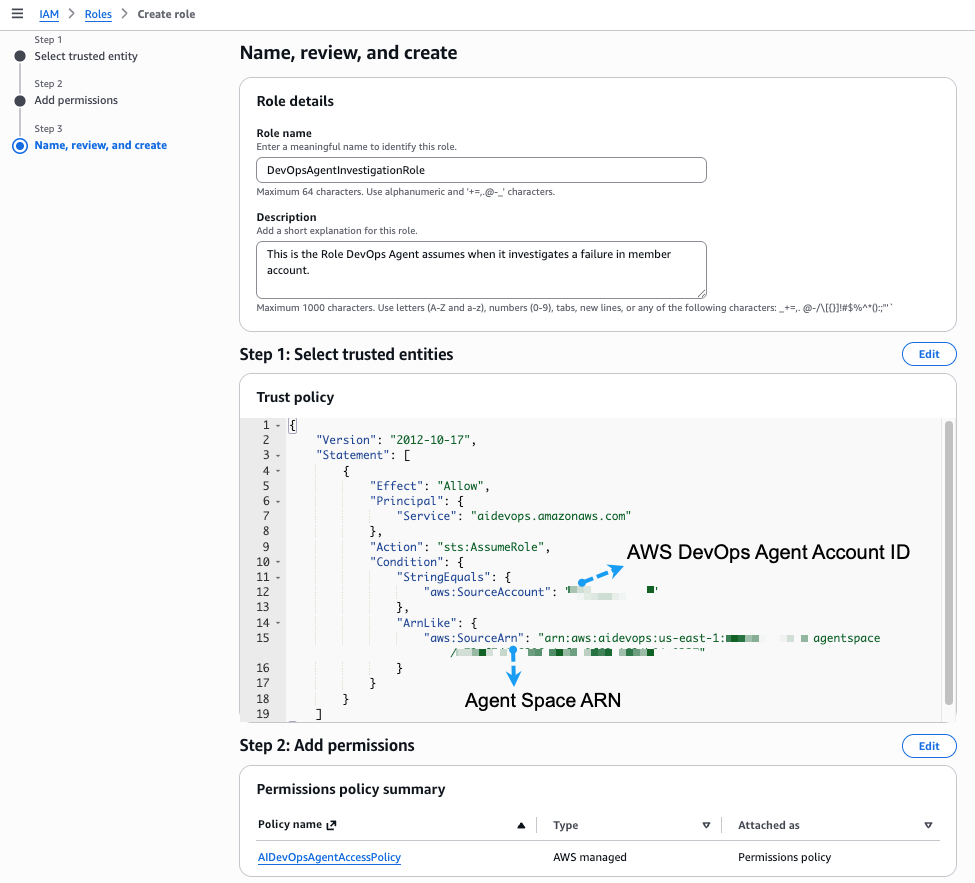
Figure 4: IAM role trust policy and AWS managed policy in the secondary accounts
After it’s validated, you should see your AWS DevOps Agent Space capabilities as shown in the following screenshot.
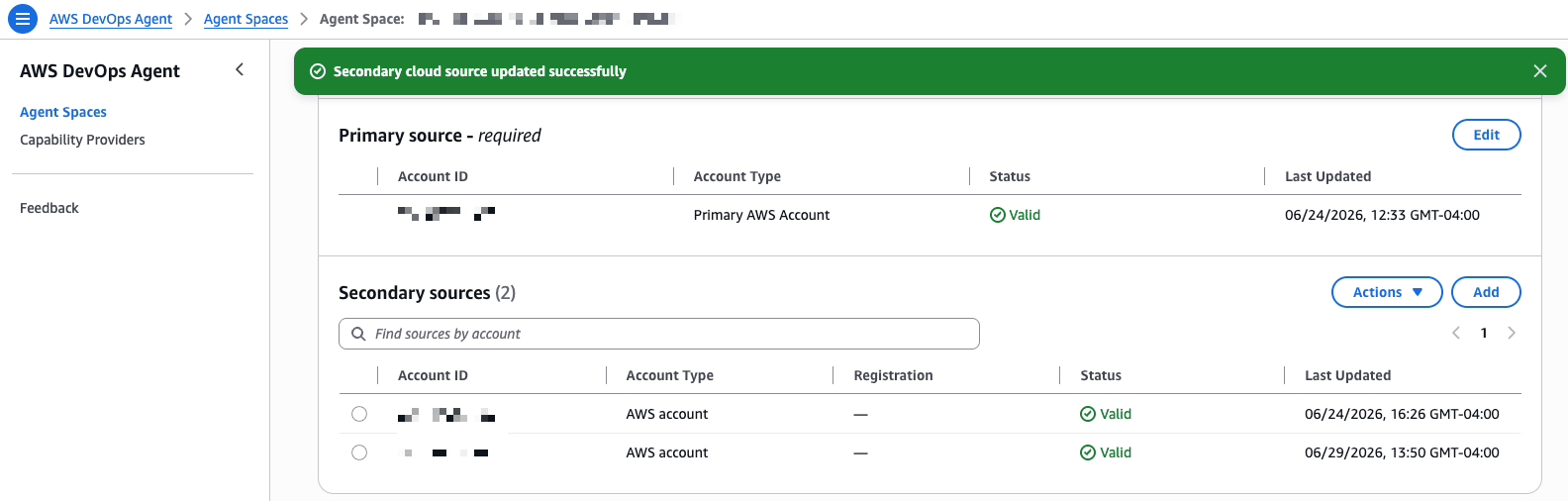 Figure 5: Validation of secondary account addition
Connect Slack
To establish a medium of communication, connect AWS DevOps Agent to your Slack workspace so it can post investigation findings to a channel your backup administrators monitor. Use the documentation here to connect the agent to Slack.
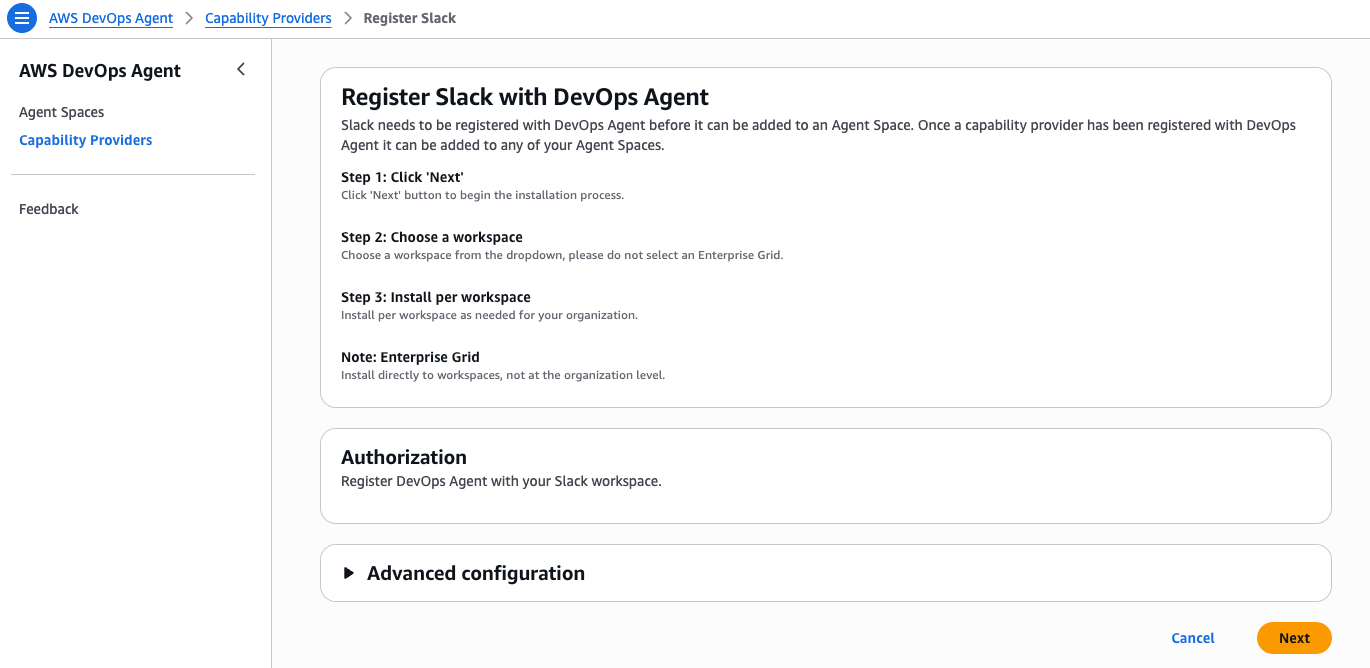 Figure 6: Registering Slack as a capability provider and authorizing the workspace
Create EventBridge rule and Lambda function for agent investigations
Now we will connect AWS Backup failures to the agent. We route FAILED, ABORTED, or EXPIRED AWS Backup events and forward the events to the AWS DevOps Agent account, so each one kicks off an investigation automatically.
Create EventBridge rule in AWS DevOps Agent account
To create the rule, complete the following steps:
- On the Amazon EventBridge console, choose Rules in the navigation pane, and confirm the default event bus is selected.
- Choose Create rule.
- For Name, enter BackupFailures-TriggerInvestigation, and for Event bus, keep default. Choose Next.
- Under Event source, keep Other, and under Event pattern, choose Custom pattern (JSON editor). Enter the following pattern:
{
"source": ["aws.backup"],
"detail-type": ["Backup Job State Change", "Copy Job State Change"],
"detail": { "state": ["FAILED", "ABORTED", "EXPIRED"] }
} - Choose Next. Under Target 1, choose AWS service, then choose Lambda function. Select the BackupFailureBridge function you create in the next section. (Create the rule first if the function does not exist yet, then return here to set the target.)
- Choose Next, review the rule, and choose Create rule.
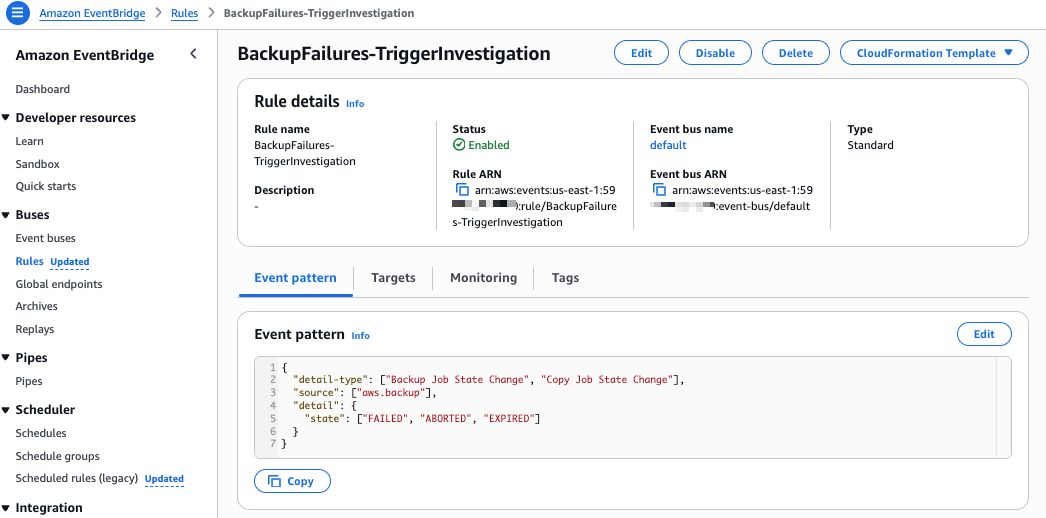
Figure 7: EventBridge rule pattern
Set up EventBridge event bus resource policy in AWS DevOps Agent account
The resource policy on the central event bus is what authorizes every workload account to put its failure events onto it. Scoping the policy to your AWS Organization ID means only your own accounts can send events. To apply the policy, complete the following steps:
- On the Amazon EventBridge console, choose Event buses in the navigation pane.
- Choose the default event bus.
- Choose Manage permissions (Edit the resource-based policy).
- Enter the following policy, replacing <REGION>, <ACCOUNT_ID>, and <ORG_ID> with your values, then choose Update:
{
"Version": "2012-10-17",
"Statement": [
{
"Sid": "AllowOrgPutEvents",
"Effect": "Allow",
"Principal": "*",
"Action": "events:PutEvents",
"Resource": "arn:aws:events:<REGION>:<ACCOUNT_ID>:event-bus/default",
"Condition": {
"StringEquals": { "aws:PrincipalOrgID": "<ORG_ID>" }
}
}
]
} 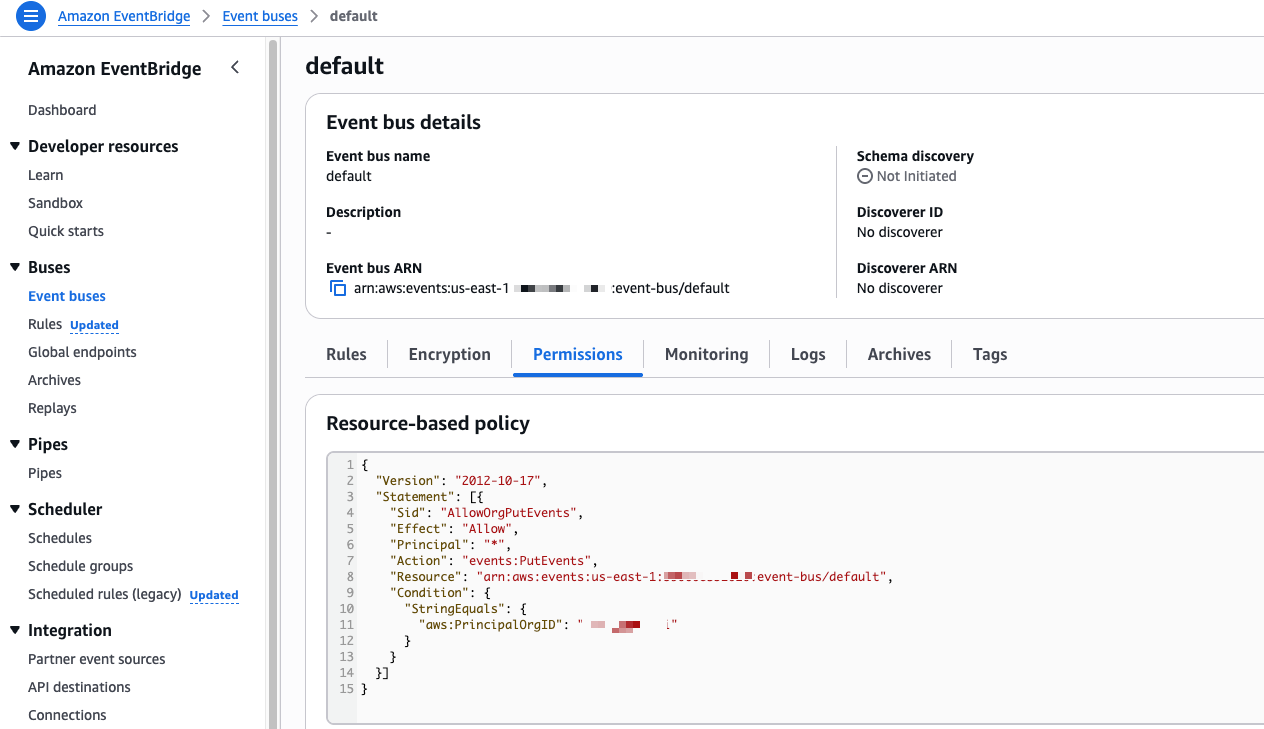 Figure 8: EventBridge event bus resource policy
Create Lambda function to sign event and post to webhook in AWS DevOps Agent account
The Lambda function is the bridge between AWS Backup events and the agent. When the EventBridge rule invokes it, the function reads the webhook credentials from Secrets Manager, builds an incident payload from the failed job (account ID, Region, resource ARN, vault name, and error message), HMAC-signs the request, and posts it to the AWS DevOps Agent webhook to start an investigation. To create the function, complete the following steps:
- On the AWS Lambda console, choose Create function, and keep Author from scratch.
- For Function name, enter BackupFailureBridge. For Runtime, choose Python 3.12. Choose Create function.
- On the Configuration tab, choose Permissions, open the execution role, and attach an inline policy with the following least-privilege permissions. This lets the function write its own logs and read only the webhook secret.
{
  "Version": "2012-10-17",
  "Statement": [
    {
      "Effect": "Allow",
      "Action": ["logs:CreateLogGroup", "logs:CreateLogStream", "logs:PutLogEvents"],
      "Resource": "arn:aws:logs:<REGION>:<ACCOUNT_ID>:log-group:/aws/lambda/BackupFailureBridge:*"
    },
    {
      "Effect": "Allow",
      "Action": "secretsmanager:GetSecretValue",
      "Resource": "arn:aws:secretsmanager:<REGION>:<ACCOUNT_ID>:secret:devops-agent/backup-webhook-*"
    }
  ]
} - On the Code tab, replace the default code with the following, then choose Deploy:
import json, hashlib, hmac, base64, urllib.request, boto3 from datetime import datetime, timezone def lambda_handler(event, context): sm = boto3.client('secretsmanager') creds = json.loads( sm.get_secret_value(SecretId='devops-agent/backup-webhook')['SecretString']) url, secret = creds['webhookUrl'], creds['webhookSecret'] detail = event.get('detail', {}) payload = json.dumps({ 'eventType': 'incident', 'incidentId': detail.get('backupJobId') or detail.get('copyJobId') or 'unknown', 'action': 'created', 'priority': 'HIGH', 'title': f"AWS Backup {detail.get('state','FAILED')} - {detail.get('statusMessage','')[:100]}", 'description': ( f"Account: {detail.get('accountId','?')}\n" f"Region: {event.get('region','?')}\n" f"Resource: {detail.get('resourceArn','?')}\n" f"Vault: {detail.get('backupVaultName','?')}\n" f"Message: {detail.get('statusMessage','?')}"), 'timestamp': datetime.now(timezone.utc).isoformat(), 'service': 'aws.backup', 'data': detail }) ts = datetime.now(timezone.utc).isoformat() sig = base64.b64encode( hmac.new(secret.encode(), f"{ts}:{payload}".encode(), hashlib.sha256).digest()).decode() req = urllib.request.Request(url, data=payload.encode(), headers={ 'Content-Type': 'application/json', 'x-amzn-event-timestamp': ts, 'x-amzn-event-signature': sig }, method='POST') with urllib.request.urlopen(req) as resp: print(f"Webhook response: {resp.status}") return {'statusCode': resp.status} - On the function’s Configuration tab, choose Triggers, choose Add trigger, select EventBridge (CloudWatch Events), and choose the BackupFailures-TriggerInvestigation rule you created earlier. Choose Add. This wires the rule to the function so a matching backup failure automatically invokes it.
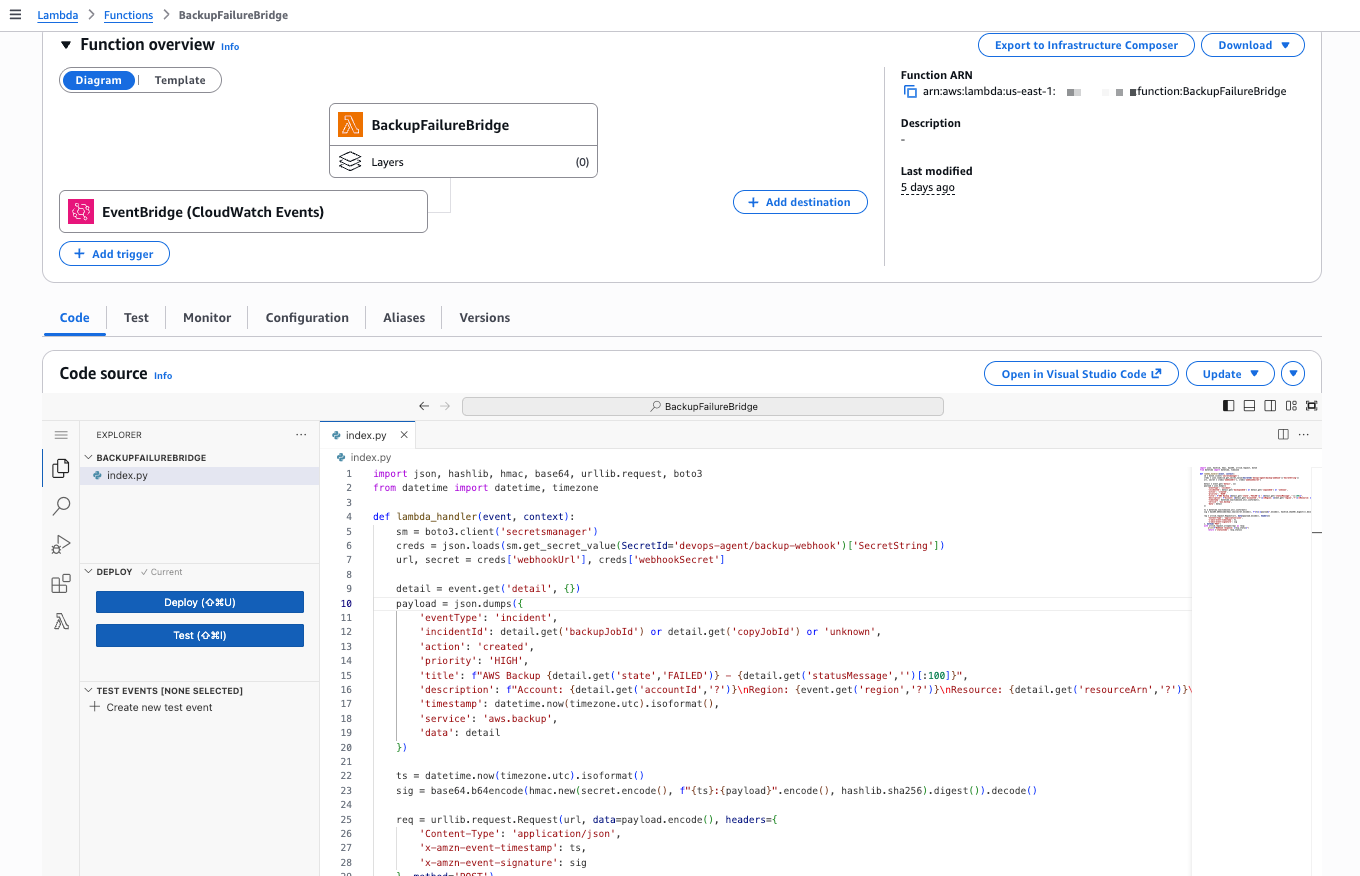 Figure 9: Lambda function with EventBridge rule trigger
Configure EventBridge forwarding rules in workload accounts
In each workload account, configure event forwarding using EventBridge. For that, we need an EventBridge forwarding rule and IAM role that allows the EventBridge to call events:PutEvents on the AWS DevOps Agent account’s event bus. We deployed these resources from the AWS DevOps Agent delegated administrator account using CloudFormation StackSets.
Deploy EventBridge forwarding rule
In each secondary account, in every Region where AWS Backup runs, create a forwarding rule that matches backup and copy job state-change events with a status of FAILED, ABORTED, or EXPIRED and forwards them to the central event bus. To do that complete the following steps:
- In the Amazon EventBridge console in the workload account, choose Rules, confirm the default event bus is selected, and choose Create rule.
- For Name, enter ForwardBackupFailures-ToCentral, and choose Next.
- Under Event pattern, choose Custom pattern (JSON editor) and enter:
{ "source": ["aws.backup"], "detail-type": ["Backup Job State Change", "Copy Job State Change"], "detail": { "state": ["FAILED", "ABORTED", "EXPIRED"] } } - Choose Next. Under Target 1, choose EventBridge event bus, then Event bus in a different account or Region, and enter the central event bus ARN: arn:aws:events:<CENTRAL_REGION>:<DELEGATED_ADMIN_ACCOUNT_ID>:event-bus/default
- Under Execution role, choose Use existing role and select BackupEventForwardingRole (created in the next section).
- Choose Next, review, and choose Create rule.
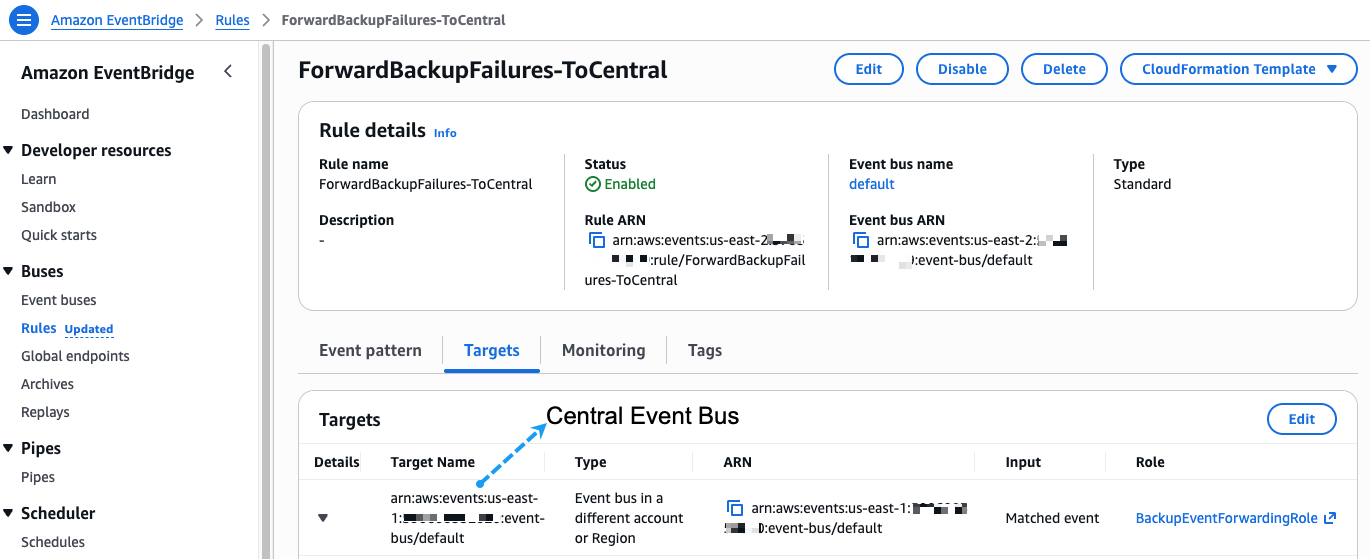
Figure 10: EventBridge rule to forward events to the AWS DevOps Agent account central event bus
Deploy IAM role to allow EventBridge put events to central event bus
EventBridge cannot put events on another account’s bus without permission. This role grants exactly that and nothing more. To create the role in each workload account, complete the following steps:
- On the AWS IAM console in the workload account, choose Roles, then Create role.
- For Trusted entity type, choose AWS service, and for the use case choose EventBridge. Choose Next.
- Skip attaching managed policies and choose Next. For Role name, enter BackupEventForwardingRole, and choose Create role.
- Open the new role, choose Add permissions, then Create inline policy, and enter the following, replacing the placeholders. Choose Create policy:
{
"Version": "2012-10-17",
"Statement": [
{
"Effect": "Allow",
"Action": "events:PutEvents",
"Resource": "arn:aws:events:<CENTRAL_REGION>:<DELEGATED_ADMIN_ACCOUNT_ID>:event-bus/default"
}
]
} 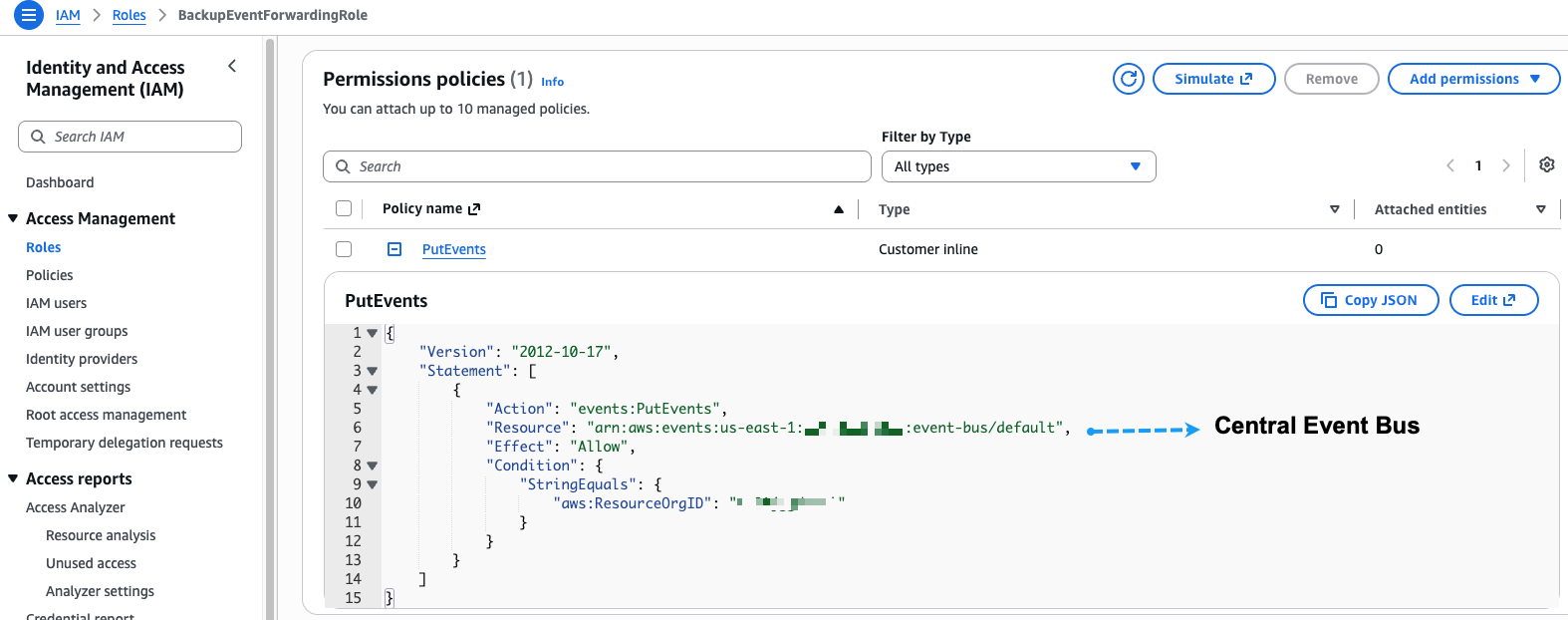 Figure 11: IAM rule to put event to central event bus in the AWS DevOps Agent account
AWS DevOps Agent Slack channel investigation reports
In this walkthrough, AWS DevOps Agent automatically investigated an AWS Backup FAILED – Access Denied error and shared the findings in the Slack channel the backup administrators monitor.
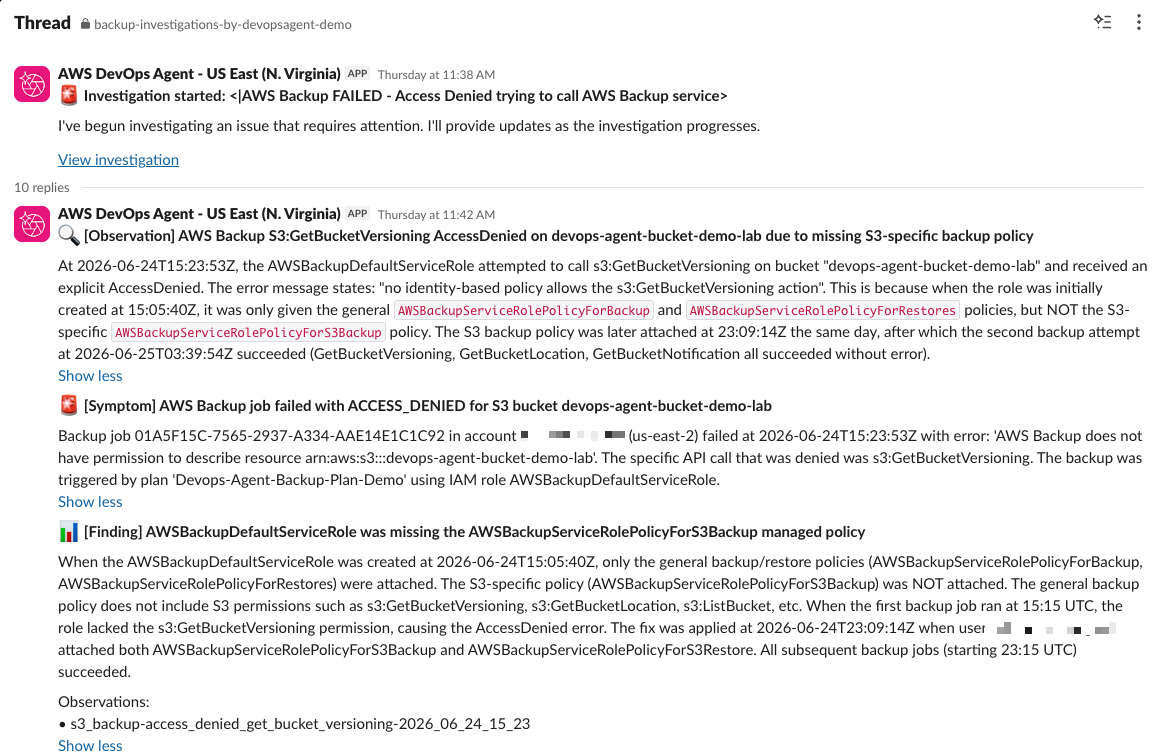
Figure 12: AWS DevOps Agent investigation findings
After a successful investigation, the final notification provides the root cause of the failed backup job and recommended remediation.
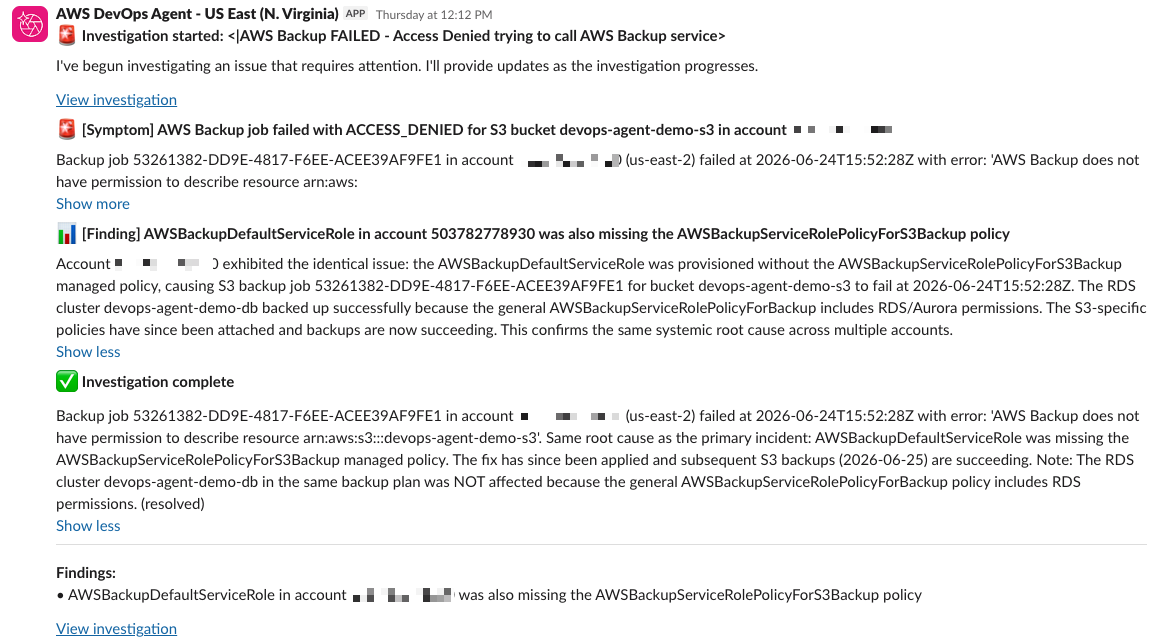
Figure 13: AWS DevOps Agent root cause and conclusion findings
AWS DevOps Agent improvements
So far, the agent has reacted to failures as they happen. But it does more than that. AWS DevOps Agent analyzes patterns across your incident investigations to deliver targeted recommendations that continuously improve your operational posture and prevent future incidents.
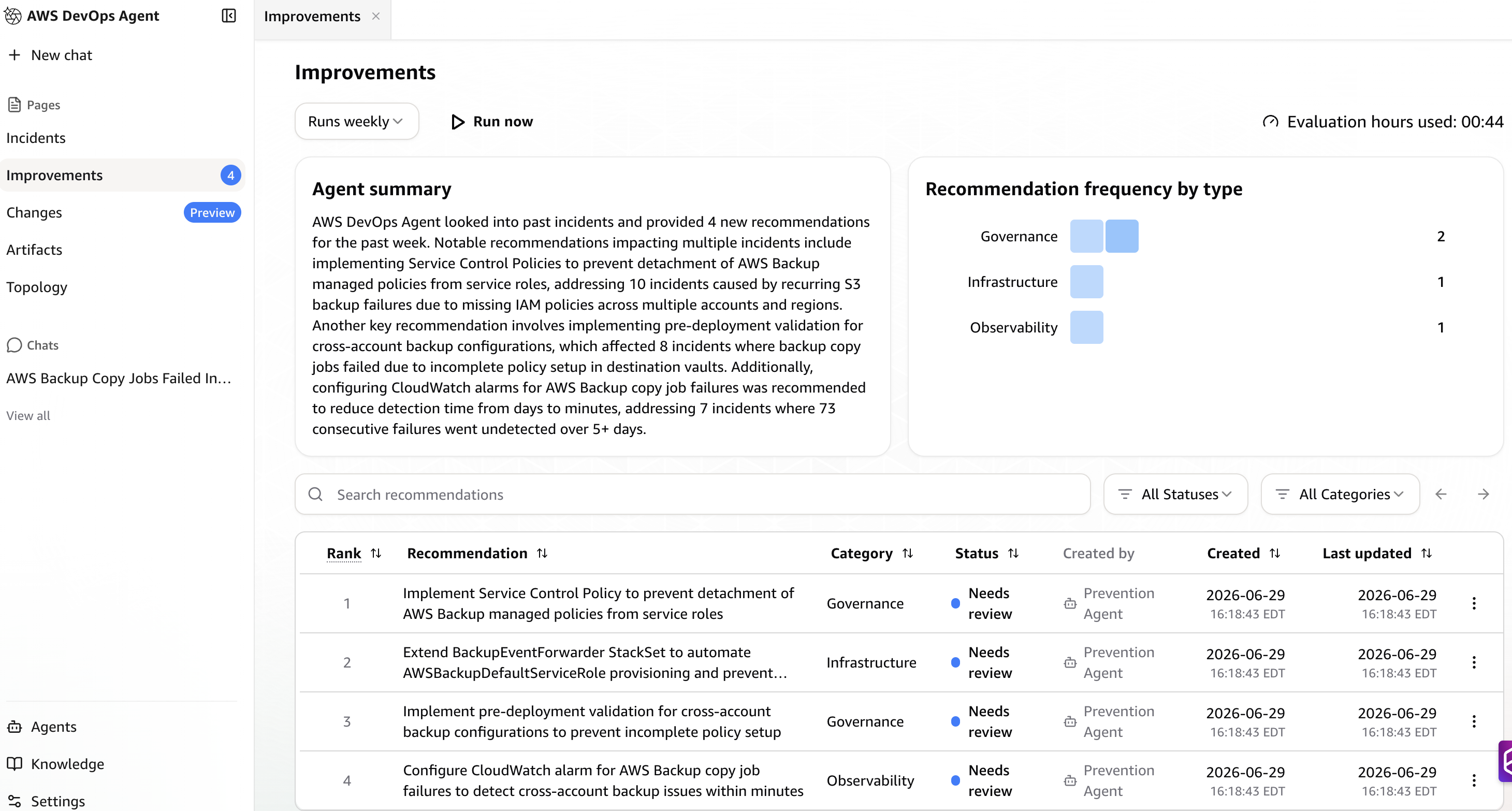
Figure 14: AWS DevOps Agent improvements
Clean up
To avoid ongoing charges from resources deployed in this walkthrough, clean up the resources you created:
- Delete Lambda function, EventBridge event rule, secret, and Agent Space.
- Delete IAM roles and EventBridge forwarding rules.
- Delete the CloudFormation StackSet instances if you deploy resources from a delegated administrator account.
Conclusion
AWS DevOps Agent turns backup failure triage from an on-call task into an automated one, and its prevention recommendations stop the same job from failing twice. The walkthrough in this post covers the accounts you connected, so the next step is to extend that coverage across the organization. A backup job can fail in any Region, so use infrastructure as code, like CloudFormation StackSets, to roll out the same setup to every workload account and Region and onboard each new secondary account in a single, consistent deployment. That way, no failure slips past an investigation.
From there, work through the prevention recommendations. Every backup plan, IAM policy, and KMS key policy you fix at the source is one fewer job that fails at all. You act on those recommendations manually today, and having the agent carry out the fix is the natural next step. For a large organization, that is the difference between hoping your backups are there and knowing they are when disaster recovery or an audit demands it. The failures that once stayed hidden are now caught, explained, and prevented, well before they become a recovery you cannot make.