IBM & Red Hat on AWS
Optimize Amazon RDS performance and Reserved Instance coverage with IBM Turbonomic
As application demand evolves, engineering and cloud financial operations (FinOps) teams look for ways to optimize Amazon Relational Database Service (Amazon RDS) performance while maximizing Reserved Instance (RI) coverage. Continuous workload growth creates opportunities to realign instance sizing with existing RI reservations for greater cost efficiency.
IBM Turbonomic brings Reserved Instance awareness and effective cost visibility to Amazon RDS optimization. You can identify coverage gaps, evaluate performance metrics alongside RI coverage, and take sizing actions that improve both application health and cost efficiency.
In this post, we show you how to connect Turbonomic to AWS, analyze Amazon RDS performance and RI coverage, and act on optimization recommendations.
Solution overview
IBM Turbonomic continuously monitors Amazon RDS workloads and generates optimization recommendations that balance performance with RI coverage.
Turbonomic connects to your AWS account and collects Amazon CloudWatch metrics (CPU utilization, memory usage, active connections, IOPS, and I/O throughput) and Amazon RDS Performance Insights data (DB cache hit rate) for each RDS instance. Performance Insights must be enabled for memory scaling recommendations. Turbonomic also ingests Reserved Instance coverage data to identify coverage gaps.
Using this telemetry, Turbonomic evaluates whether each RDS instance is correctly sized for its workload. It then generates actions that:
- Ensure application performance by identifying resource constraints
- Optimize instance sizing based on observed demand patterns using percentile-based analysis rather than averages, so transient spikes don’t distort recommendations
- Maximize Reserved Instance utilization by factoring RI coverage into sizing decisions
- Provide cost transparency through effective cost, which combines amortized RI costs with any on-demand spend
The following diagram shows how Turbonomic integrates with AWS to optimize Amazon RDS instances. It collects performance metrics from Amazon CloudWatch and Performance Insights, and RI coverage data from the Cost Explorer API and Cost and Usage Reports in Amazon S3. Turbonomic correlates this telemetry to generate rightsizing recommendations you can execute manually or automate.
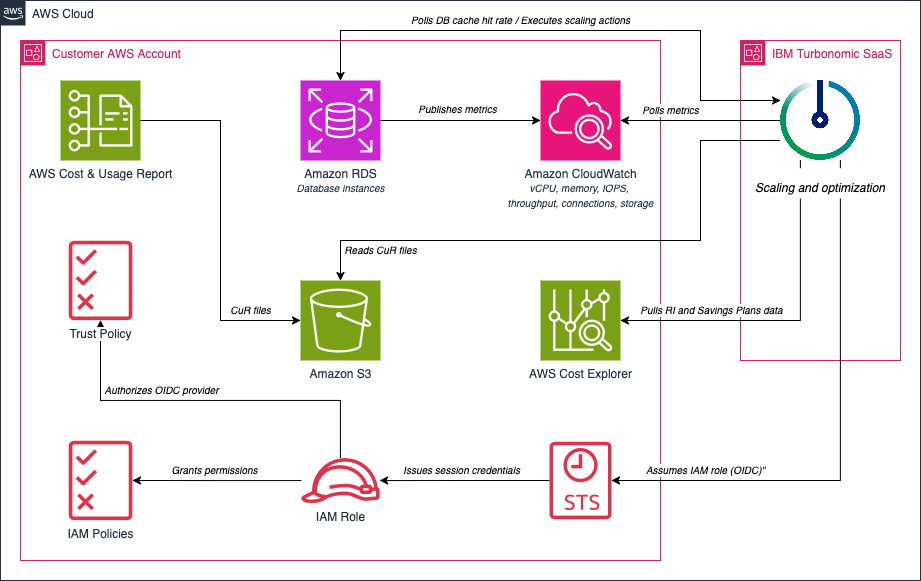
Figure 1. IBM Turbonomic architecture for Amazon RDS optimization.
Prerequisites
Before you begin, confirm that you have:
- An AWS account with access to Amazon RDS, Amazon CloudWatch, AWS Identity and Access Management (IAM), and Amazon Virtual Private Cloud (Amazon VPC)
- One or more Amazon RDS instances. See Supported Amazon RDS instance types and database engines for compatibility. To create an instance, see Creating an Amazon RDS DB instance.
- Amazon CloudWatch monitoring enabled for your Amazon RDS instances
- Amazon RDS Performance Insights enabled on each RDS instance you want Turbonomic to monitor, so it can capture DB cache hit rate for memory scaling decisions.
- Optional: existing Amazon RDS Reserved Instances
- An IBM Turbonomic license or an active Turbonomic trial from AWS Marketplace
- An IAM role (recommended) or IAM user with the minimum permissions required to discover, monitor, and optimize your RDS workloads. For IAM role setup in SaaS deployments, see Setting up an AWS IAM role for SaaS deployments.
- An AWS Cost and Usage Report (CUR) delivered to Amazon Simple Storage Service (Amazon S3) and configured as a billing target in Turbonomic for RI-aware recommendations and effective cost visibility.
Cost considerations
Following this walkthrough incurs AWS charges for Amazon RDS, Amazon CloudWatch, Amazon S3, AWS Cost Explorer API, and data transfer. Performance Insights is included at no extra charge with 7-day retention. IBM Turbonomic SaaS is available through AWS Marketplace with a free trial option.
Use the AWS Pricing Calculator to estimate your AWS costs. To avoid ongoing charges, follow the Clean-up resources section when you finish
Implementation steps
Follow these steps to connect IBM Turbonomic to your AWS environment, discover Amazon RDS instances, and begin optimizing performance and cost.
Step 1: Connect AWS to Turbonomic
To add an AWS target in Turbonomic:
- Choose Add Target > AWS, review the connection requirements in the side panel, and choose Connect Target.
- Enter a Display name for the AWS connection.
- Choose the Account scope that matches your environment: select Multiple accounts if Turbonomic connects to more than one AWS account, or Single account if it connects to just one.
- On the Management account access page (multi-account) or Account access page (single account), select the IAM Role or IAM User tab matching your prerequisites. IAM Role with OpenID Connect (OIDC) federation is recommended for SaaS deployments.
- For IAM Role, enter the role Amazon Resource Name (ARN). For IAM User, enter the access key ID and secret access key.
- On the Member accounts access page, specify the cross-account IAM role name, select a permissions policy, and deploy the provided AWS CloudFormation StackSet to member accounts
- If you connect through a proxy, complete the Proxy configuration page with the proxy hostname, port, and credentials.
- Complete the wizard to finish adding the target.
After you add the target, Turbonomic validates the connection and begins discovering AWS resources. The following screenshot shows the AWS target connection workflow with IAM Role selected for account access.
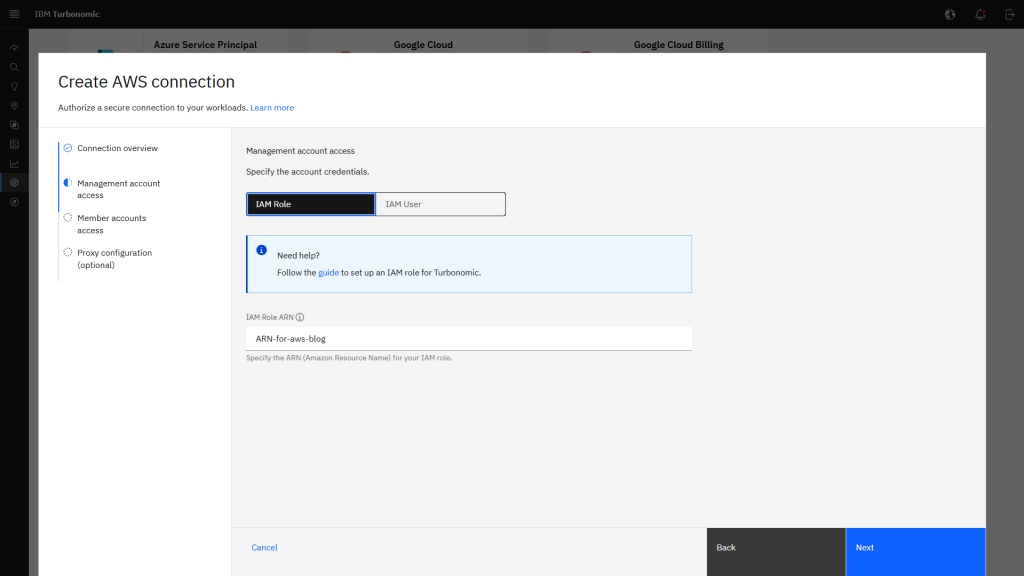
Figure 2. AWS target connection workflow in IBM Turbonomic.
Step 2: Validate Amazon RDS discovery
After you connect the AWS target, Turbonomic discovers and validates it automatically. Wait for the target status on the Target Configuration page to show as Normal before proceeding.
To confirm that Turbonomic discovered your RDS instances:
- From the Turbonomic navigation, choose Search. Enter the name of your Amazon RDS instance or filter by entity type Database Server to locate your discovered RDS instances.
- Filter results to Database Server entities and confirm they belong to your AWS target account.
- Select an Amazon RDS instance to open its entity page. Confirm that it appears in the supply chain and that Turbonomic shows its relationships (region, availability zone, and storage resources).
- If the expected RDS instance doesn’t appear, return to Settings > Target Configuration, confirm the target status is Valid, and verify the account scope and IAM permissions. Choose Rediscover if needed to trigger a fresh discovery cycle.
The following screenshot shows the discovered Amazon RDS instances in Turbonomic after filtering the database server list.
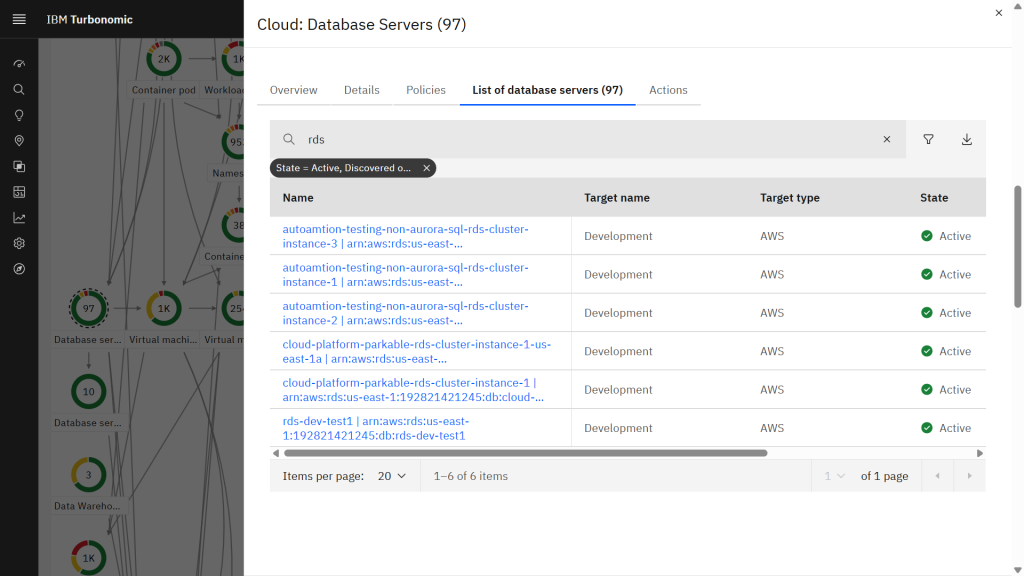
Figure 3. List of discovered Amazon RDS instances in IBM Turbonomic.
With your RDS instances discovered, you can now review performance metrics and RI coverage to identify optimization opportunities.
Step 3: Analyze RDS performance and RI coverage
With your RDS instances discovered, review performance metrics and RI coverage to identify optimization opportunities:
To review performance and RI coverage for an RDS instance:
- From the database server list, select the RDS instance that you want to analyze.
- On the entity page, review the supply chain visualization to confirm that Turbonomic discovered the database server and its relationships to the region, availability zone, and storage.
- Review the details tab chart. This view shows resource utilization metrics that Turbonomic monitors for RDS, including vCPU, memory, storage amount, IOPS, I/O throughput, DB cache hit rate, and connections.
- Adjust the multiple resources chart time range to cover the relevant observation window.
- Look for sustained resource pressure, excess headroom, or storage-related constraints before reviewing optimization actions.
- In the Overview tab, review the Discount coverage widget to check whether the instance is fully covered, partially covered, or running on-demand. If no coverage data appears, verify your billing target and Cost and Usage Report configuration.
The following screenshot illustrates an Amazon RDS instance overview with supply chain relationships, resource metrics, discount coverage, and cost data.
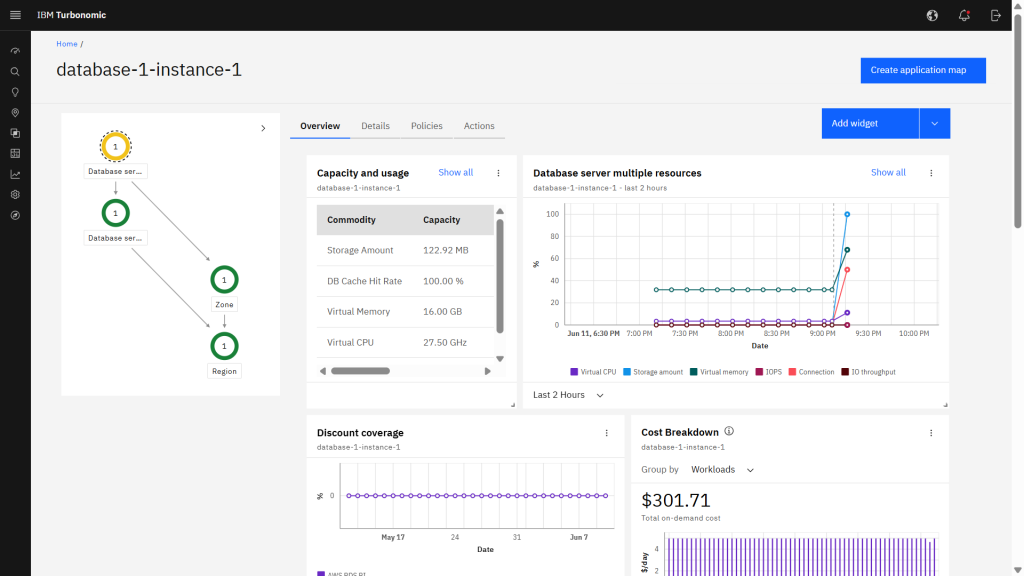
Figure 4. Amazon RDS instance overview in IBM Turbonomic showing resource metrics and cost breakdown.
Step 4: Review effective cost for Amazon RDS
Effective cost combines the on-demand rate with amortized Reserved Instance costs, giving you a complete view of what each database costs to run.
To review effective cost for your RDS instance:
- From the Amazon RDS instance entity page, choose the Actions tab to open the Action center scoped to that instance.
- In the Action center, locate the scale actions for the RDS instance and choose Effective to view recommendations using effective cost instead of on-demand cost.
- Effective cost accounts for both the on-demand cost and the amortized cost of any Reserved Instance coverage. This gives you a more accurate picture of what the database costs to run and how a recommended scale action affects total cost. Note that effective cost might be higher than on-demand cost if the instance has additional discount utilization.
- Review the projected savings for each pending scale action.
Thee following screenshot shows the Action center with Effective selected, displaying the same optimization opportunities with with effective cost values shown for cost analysis.
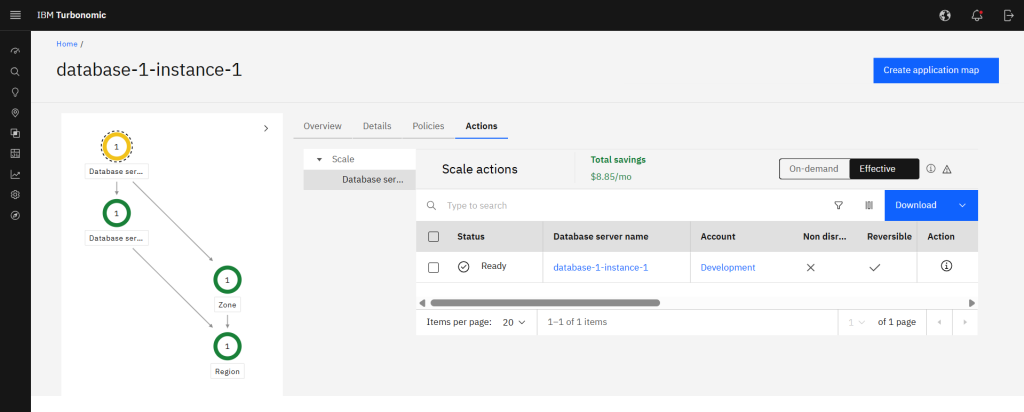
Figure 5. Effective cost view for Amazon RDS optimization in IBM Turbonomic.
Step 5: Review and execute optimization actions
Turbonomic generates scale actions based on observed demand and RI coverage. Review the action details before executing to confirm the projected impact meets your requirements.
To review an action:
- From the Actions tab, choose the information icon on a recommended scale action to open the Action details
- Review the following sections on the Action details page:
-
- Action summary: The recommended change, such as scaling an RDS instance from one instance type to another.
- Action essentials: Whether the action is disruptive and whether it is reversible.
- Resource impact: Projected changes to vCPU, vMem, DB cache hit rate, IOPS, I/O throughput, connections, and storage amount.
- Discount coverage: How the recommendation aligns with existing Reserved Instance coverage.
- Cost impact: Current and projected costs, including estimated monthly savings.
Turbonomic recommends memory scaling only when DB cache hit rate falls below 90% and memory pressure is elevated. If memory remains unchanged, cache health is sufficient at the current size.
The following screenshot presents a savings-focused scale recommendation with the target instance type and projected utilization.
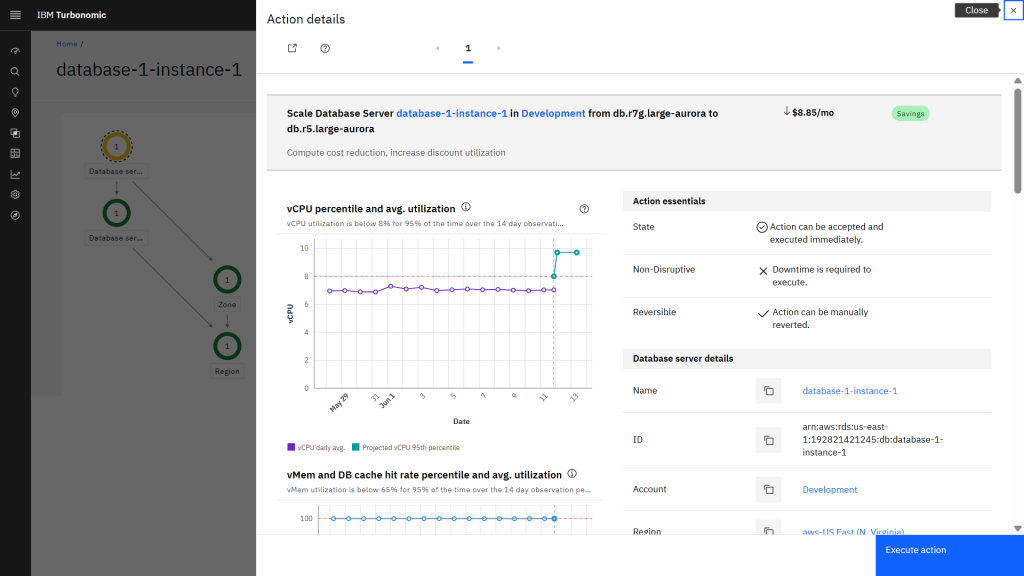
Figure 6. RDS action details in IBM Turbonomic showing a savings-focused scale recommendation.
- Compare Current and After action values for each metric to confirm the target instance type meets your workload requirements.
The following screenshot shows the projected resource changes for this RDS scale action.
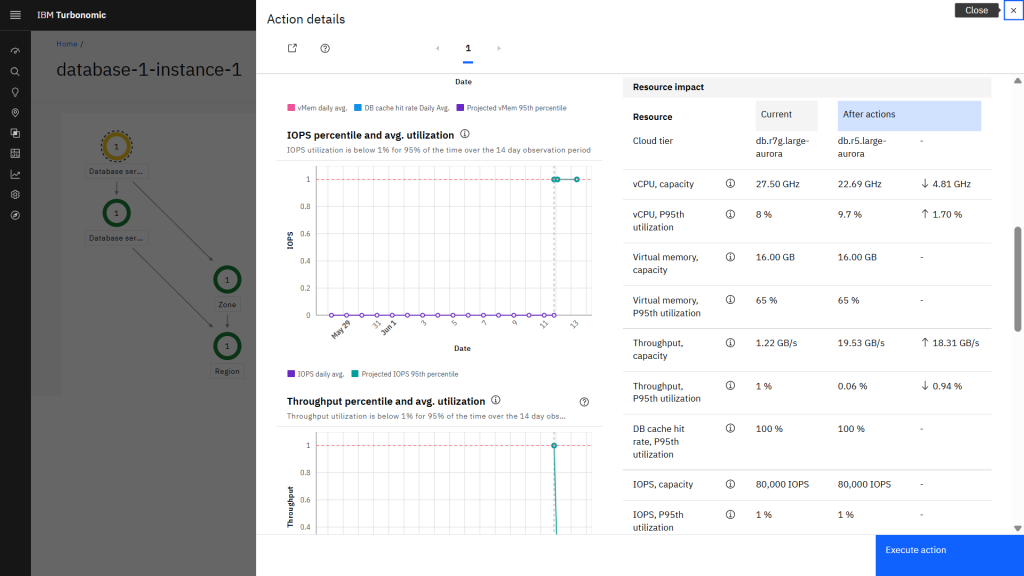
Figure 7. RDS action details in IBM Turbonomic showing projected resource impact after a recommended change.
- Review the Discount coverage Discount coverage shows the RI coverage percentage for the current instance type and the projected coverage after the action runs.
- Compare the current and projected monthly costs to understand the full cost impact of the recommendation.
The following screenshot shows RI coverage and projected cost impact for this recommendation.
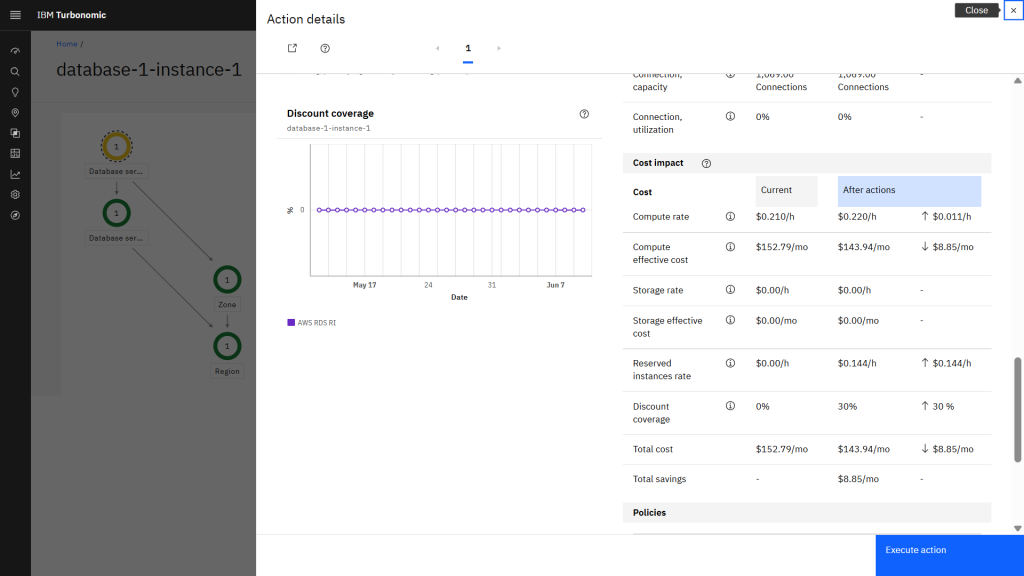
Figure 8. RDS action details in IBM Turbonomic showing discount coverage and projected cost impact.
To execute the action:
- Choose an execution method that matches your operating model. We recommend starting with manual execution to validate projected impact before enabling automation:
-
- To apply the action manually, return to the Action center, select the action, and choose Execute Actions.
- To automate future actions, choose Settings > Policies and open or create a policy scoped to your RDS instance. Set the Automation workflow mode to Manual, Automated, or Automated when approved.
The following screenshot shows the policy configuration view for an Amazon RDS instance, including the automation workflow and scaling constraints.
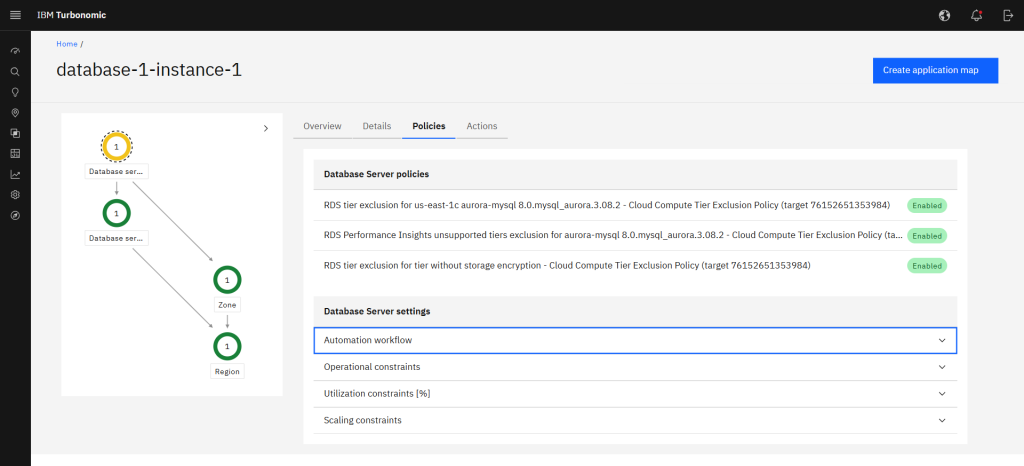
Figure 9. Policy settings for an Amazon RDS instance in IBM Turbonomic.
Clean-up resources
To avoid ongoing costs on your AWS account and stop monitoring and optimization for the environment used in this walkthrough:
- In Turbonomic, choose Settings > Target configuration.
- Locate the AWS target you created for this walkthrough.
- If you configured an automation policy for this target’s entities, choose Settings > Policies, open the policy, and set the action generation mode back to Recommend or delete the policy.
- Return to Target configuration, select the target, and choose Delete to remove the target connection. Deleting a target removes the associated entities from the supply chain.
- If you deployed Turbonomic specifically for testing, stop or decommission the environment according to your organization’s standard operational procedures.
- Delete any Amazon RDS instances or Multi-AZ clusters created for this walkthrough.
- Delete any IAM role or IAM user created for Turbonomic to access your AWS account.
Conclusion
In this post, we showed you how to connect IBM Turbonomic to your AWS account, analyze Amazon RDS performance alongside RI coverage, and act on optimization recommendations.
With this workflow, you can continuously analyze application demand, align database configurations with Reserved Instances, and gain visibility into effective cost — helping your team make data-driven sizing decisions with confidence.
Get started
To get started, sign up for a free trial of IBM Turbonomic SaaS on AWS Marketplace and connect your AWS account to begin discovering and optimizing your Amazon RDS instances.
Additional resources
- Optimize GPU workloads on Amazon EKS and ROSA with IBM Turbonomic
- Optimize GPU-powered AI workloads on Amazon EC2 with IBM Turbonomic
- Optimizing Workload Performance and Cost with IBM Turbonomic on AWS
- Achieving Sustainable IT Through Elasticity with IBM Turbonomic and AWS
- Additional IBM on AWS blogs