AWS HPC Blog
Part 1: Managing Large-Scale LLM Training with AWS ParallelCluster
Introduction
The Korean Government announced a national AI initiative to provide high-performance GPU infrastructure for Korea’s national AI research teams. AWS was selected as a supplier of GPU resources for the “AI for Research” project hosted by KAIT (Korea Association for ICT Promotion), and provided 30 p5en.48xlarge instances (240 H200 GPUs) for 8 months to AI research teams across several institutions including Korea Advanced Institute of Science and Technology (KAIST), Gwangju Institute of Science and Technology (GIST), Seoul National Univ Hospital (SNUH), Seoul National University (SNU), HanYang University (HYU), SungKyunKwan University (SKKU), and Korea University.
In this post, we would like to share our experience in efficiently providing GPU resources to research institutions and the insight we gained from Large-scale LLM Training Environments. Supporting large-scale LLM training requires more than just configuring a GPU cluster. The HPC infrastructure demands tight integration between GPUs, storage, networking, and schedulers. Stability becomes paramount in training environments that can run for weeks at a time.
In particular, we’re sharing a real-world implementation where we worked with Korean research teams (KAIST, GIST, SNUH, SNU, HYU, SKKU, Korea Univ, etc.) to create a large-scale training environment using AWS ParallelCluster and FSx for Lustre. This setup connected up to 16 p5en.48xlarge instances and FSx for Lustre 230.4TiB for high-performance training. Rather than simply explaining the setup process, we’ll focus on practical operational insights such as ParallelCluster configuration best practices. The goal is to share field-tested operational tips and stability strategies that can be immediately applied by anyone designing or managing GPU cluster-based LLM training environments.
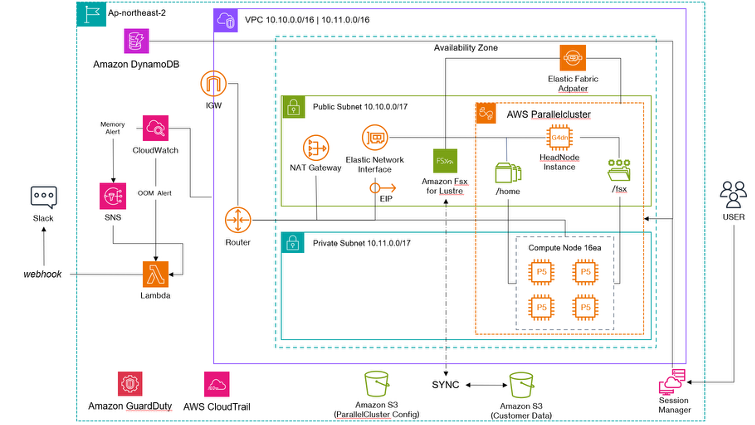
Figure 1 – ParallelCluster Architecture – ParallelCluster with 1 HeadNode (g4dn), 16 ComputeNodes (p5en), and 230.4TB of FSx for Lustre with EFA enabled, with training data in the Lustre synced to an s3 bucket, and CloudWatch alarms delivered to Slack via SNS and Lambda.
Building GPU clusters with ParallelCluster
Creating a large-scale GPU cluster doesn’t necessarily require complex architecture. AWS ParallelCluster enables easy cluster definition and scaling through a single YAML based configuration file (cluster-config.yaml). In our implementation, we set MinCount and MaxCount to the same value to ensure a consistent number of GPU nodes. While ParallelCluster’s default behavior creates compute nodes on-demand when Slurm jobs are submitted (keeping only the HeadNode running), our project required stable resource availability due to the research nature of the workload. Now let’s examine our actual cluster-config.yaml and explain the significance of key configuration lines and the reasoning behind our choices:
Imds:
  ImdsSupport: v2.0
Image:
  Os: ubuntu2204
  CustomAmi: ami-0a48ee03071e7ff21
HeadNode:
  InstanceType: g4dn.8xlarge
  Ssh:
    KeyName: ${SSH_KEY}
  Networking:
    SubnetId: ${PUBLIC_SUBNET_ID}
    AdditionalSecurityGroups:
      - ${SECURITY_GROUP}
    ElasticIp: ${HEADIP}
  LocalStorage:
    RootVolume:
      Size: 1024
      Iops: 16000
      Throughput: 1000
      DeleteOnTermination: true
  Iam:
    AdditionalIamPolicies:
      - Policy: arn:aws:iam::aws:policy/AdministratorAccess
  CustomActions:
    OnNodeConfigured:
      Script: s3://${S3_NAME}/script/main_headconf-script.sh
Scheduling:
  Scheduler: slurm
  SlurmSettings:
    ScaledownIdletime: 60
    QueueUpdateStrategy: DRAIN
    EnableMemoryBasedScheduling: true
    CustomSlurmSettingsIncludeFile: s3://${S3_NAME}/script/slurm-settings.conf

  SlurmQueues:
    - Name: compute
      CapacityReservationTarget:
        CapacityReservationId: ${COM_CRID}
      Networking:
        SubnetIds:
          - ${Private_SUBNET_ID}
        PlacementGroup:
          Enabled: false
        AdditionalSecurityGroups:
          - ${SECURITY_GROUP}
      Iam:
        AdditionalIamPolicies:
         - Policy: arn:aws:iam::aws:policy/AdministratorAccess
      ComputeSettings:
        LocalStorage:
          EphemeralVolume:
            MountDir: /opt/dlami/nvme
          RootVolume:
            Size: 500
      JobExclusiveAllocation: false
      ComputeResources:
        - Name: kait-gpu
          InstanceType: p5en.48xlarge
          MinCount: ${INSTANCES_NUM}
          MaxCount: ${INSTANCES_NUM}
          Efa:
            Enabled: true
      CustomActions:
        OnNodeStart:
          Script: s3://${S3_NAME}/script/main_comstart-script.sh
        OnNodeConfigured:
          Script: s3://${S3_NAME}/script/lustre_tuning.sh
DevSettings:
  Timeouts:
    HeadNodeBootstrapTimeout: 3600

SharedStorage:
  - MountDir: /fsx
    Name: fsx
    StorageType: FsxLustre
    FsxLustreSettings:
      FileSystemId: ${FSX_ID}
Monitoring:
  DetailedMonitoring: true
  Logs:
    CloudWatch:
      Enabled: true
  Dashboards:
    CloudWatch:
      Enabled: true
Tags:
  - Key: 'Grafana'
    Value: 'true'
ParallelCluster cluster-config.yaml
Key configuration options in AWS ParallelCluster
QueueUpdateStrategy: DRAIN
Provides a safe update mechanism when modifying cluster configurations by gradually replacing nodes while preserving existing jobs, ensuring uninterrupted workloads during updates.
EnableMemoryBasedScheduling: true
Activates memory-aware scheduling in Slurm so that job placement considers both CPU and Memory requirements. When disabled, there’s a risk of memory shortage as the scheduler would only optimize for CPU allocation.
CapacityReservationId: ${COM_CRID}
Applies Targeted Capacity Reservation to ensure a consistent quantity of GPU instances is always available, providing stability for resource-intensive workloads.
JobExclusiveAllocation: false
Improves resource utilization by allowing multiple jobs to be placed on a single node. When enabled, only one job per node would be permitted regardless of available resources, which decrease overall resource efficiency.
MinCount: ${INSTANCES_NUM}
MaxCount: ${INSTANCES_NUM}
For HPC and distributed deep learning tasks that require a fixed number of GPU nodes, setting identical minimum and maximum instance counts provides a stable, predictable cluster environment with consistent capacity.
Efa:
Enabled: true
Activates Elastic Fabric Adapter (EFA) on compute node groups to deliver lower latency and higher bandwidth for communication-intensive workloads like distributed deep learning training.
CustomSlurmSettingsIncludeFile: s3://${S3_NAME}/script/slurm-settings.conf
Used to define additional Slurm parameters with a separate configuration file. This approach helps reduce resource contention in multi-user environments and applies customized scheduling policies. In our environment, we define resource allocation units (16 CPUs and 200GB memory per GPU) and create priority-based Slurm Partitions and Slurm Accounting to efficiently distribute resources among multiple researchers and prevent monopolization of cluster resources.
PreemptType=preempt/partition_prio
PreemptMode=REQUEUE

JobCompType=jobcomp/filetxt
JobCompLoc=/home/slurm/slurm-job-completions.txt
JobAcctGatherType=jobacct_gather/linux

UnkillableStepTimeout=300

DefCPUPerGPU=16
DefMemPerGPU=200000

# Farishare Scheduling Setting
SchedulerType=sched/backfill
PriorityType=priority/multifactor

# Define Partition
PartitionName=debug     Nodes=compute-st-kait-gpu-1     Priority=100  MaxTime=00:30:00  Default=NO  State=UP AllowQOS=debug_qos
PartitionName=normal    Nodes=compute-st-kait-gpu-1     Priority=200  MaxTime=1-00:00:00 Default=YES State=UP AllowQOS=normal_qos
PartitionName=priority  Nodes=compute-st-kait-gpu-[1-4] Priority=300  MaxTime=5-00:00:00 Default=NO  State=UP AllowQOS=priority_qos
PartitionName=exclusive Nodes=compute-st-kait-gpu-[1-4] Priority=1000 MaxTime=14-00:00:00 Default=NO  State=UP PreemptMode=REQUEUE AllowQOS=exclusive_qos

# Create Slurm Accounting
AccountingStorageType=accounting_storage/slurmdbd
AccountingStorageHost=localhost
AccountingStoragePort=6819
AccountingStorageTRES=cpu,mem,energy,node,billing,gres/gpu

# Policy enforcement
AccountingStorageEnforce=limits,qos,associations

# reflect Wegiht Priority
PriorityWeightPartition=100000
PriorityWeightQOS=1000
PriorityWeightFairshare=100
ParallelCluster slurm-settings.conf
Implementing Slurm Partitions and Slurm Accounting
While Slurm Partitions are useful for grouping and prioritizing jobs, they fundamentally function as simple “queues” with limited control over individual users. As a result, when multiple users share the environment simultaneously, some users may ignore agreed-upon resource limits or submit excessive jobs, leading to unfair situations where certain researchers monopolize resources while others experience delays in their work.
To prevent this, we implemented Slurm Accounting. Slurm Accounting enables mandatory control over job submission counts, concurrent execution limits, and maximum execution time on a per-user and per-account basis. It also records all usage history in a database, enabling comprehensive resource usage management.
In essence, if Slurm Partitions provide the “framework for resource allocation”, Slurm Accounting serves as the management system that actually enforces and tracks these allocations. By combining these two features, we were able to ensure fairness, prevent resource abuse, and improve operational efficiency.
| Category | Slurm Partition | Slurm Accounting |
|---|---|---|
| Control Unit | Partition | User, Account, QoS |
| Available Constraints |
|
|
| Priority Management | Partition Priority value | Precise control through QoS Priority + Weight combination |
| Policy Enforcement | Slurm default behavior (recommended level) | Mandatory enforcement via AccountingStorageEnforce |
| Use case |
|
Fine-grained resource control and usage tracking per team/user |
Table 1 – Comparison Table: Slurm Partition vs. Slurm Accounting
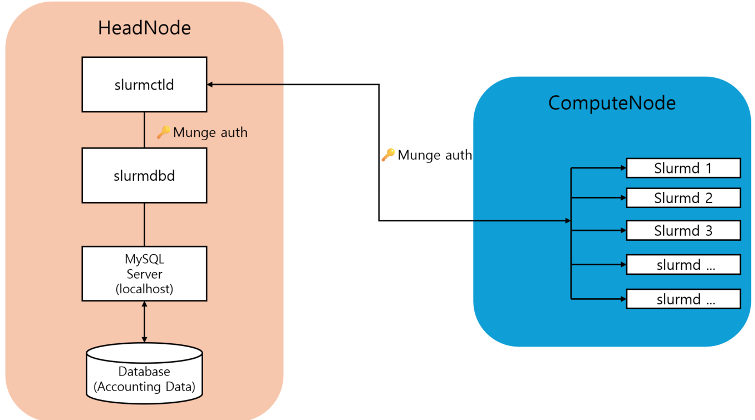
Figure 2 – Slurm Accounting Diagram – This diagram illustrates the architecture of a Slurm cluster, where the HeadNode components, slurmctld and slurmdbd, communicate with slurmd daemons on the ComputeNodes using Munge authentication, and accounting and policy-related metadata is stored in a MySQL-based database.
Key configuration options in Slurm partitions and accounting
PreemptType=preempt/partition_prio
Determines preemption behavior based on Partition Priority
PreemptMode=REQUEUE
Jobs running in lower-priority partitions will be suspended and automatically returned to the queue when higher-priority jobs are submitted, ensuring critical workloads get immediate access to resources.
UnkillableStepTimeout=300
When Slurm terminates a job, it first sends a SIGTERM signal, then waits the specific duration (300 seconds) before forcing termination with SIGKILL. This generous timeout allows job sufficient time to shut down properly, reducing the risk of data loss or corruption during termination.
DefCPUPerGPU=16
DefMemPerGPU=200000
Define the standard resource allocation ratio, automatically assigning 16 CPU cores and 200GB of memory for each GPU requested by a job. This standardization helps maintain consistent resource allocation across different user workloads.
Define Partition
Organizes jobs into distinct partitions with different priority levels to optimize resource allocation. This tiered partition structure ensures that important workloads receive resource first, while still allowing maximum utilization of the cluster when high-priority jobs are not running.
PartitionName=debug Nodes=compute-st-kait-gpu-1 Priority=100 MaxTime=00:30:00 Default=NO State=UP AllowQOS=debug_qos
- Partition for quick testing of short jobs (max 30 minutes)
- Priority=100 (low priority)
- Maps debug_qos to debug partition
PartitionName=normal Nodes=compute-st-kait-gpu-1 Priority=200 MaxTime=1-00:00:00 Default=YES State=UP AllowQOS=normal_qos
- For general job submissions (max 1 day)
- Automatically selected when -p option is not specified
- Maps normal_qos to normal partition
PartitionName=priority Nodes=compute-st-kait-gpu-[1-4] Priority=300 MaxTime=5-00:00:00 Default=NO State=UP AllowQOS=priority_qos
- Can use multiple nodes (1-4), max 5 days
- Priority=300 (high priority)
- Maps priority_qos to priority partition
PartitionName=exclusive Nodes=compute-st-kait-gpu-[1-4] Priority=1000 MaxTime=14-00:00:00 Default=NO State=UP AllowQOS=exclusive_qos
- Exclusive use of multiple nodes (1-4), max 14 days
- Priority=1000 (highest priority)
- Maps exclusive_qos to exclusive partition
AccountingStorageTRES=cpu,mem,energy,node,billing,gres/gpu
Specified the types of resources (TRES – Trackable RESources) to be tracked
AccountingStorageEnforce=limits,qos,associations
Enforces limits set at QOS and user (Account) levels
PriorityWeightPartition=100000
Weight factor determining how much partition priority (Priority value defined in PartitionName) is reflected (partition priority takes highest precedence)
PriorityWeightQOS=1000
Weight factor for QOS (Quality of Service) Priority (service policy priority takes second precedence)
PriorityWeightFairshare=100
Weight factor for Fairshare scoring (based on Share values) – final adjustment for fair distribution per user/account
User-Specific QOS configuration using Slurm Accounting
While we provided autonomous partition-level constraints using the important Slurm Partition settings introduced earlier, we additionally configured Slurm Accounting to ensure fair and efficient resource management in an environment where multiple researchers simultaneously utilize the Slurm cluster. Below are the resource control requirements from research teams:
| Partition | Access Rights | WallTime | Concurrent Execution Limit | Concurrent Submission Limit | Execution Nodes | Priority (Partition-based) | Default QOS | Fairshare |
|---|---|---|---|---|---|---|---|---|
| debug | General + Priority | 30 min | 1 | 1 | Node1 | Low (100) | X | Global Setting |
| normal | General + Priority | 24 hours | 4 | 8 | Node1 | Default (200) | O | |
| priority | Priority users only | 120 hours | Unlimited | Unlimited | Node1-4 | High (300) | O | |
| exclusive | Priority users only | 336 hours | 1 | 2 | Node1-4 | Highest (1000) | X |
Feature 4 – Job Scheduling Policy Table
This policy defines access permissions, maximum execution time (WallTime), concurrent execution and submission limits, and priorities for each partition, establishing criteria for researchers to use resources according to agreed-upon methods.
For example, the debug partition is accessible to general users for short testing purposes but is limited to a maximum of 30 minutes with only 1 concurrent job allowed. In contrast, the exclusive partition is reserved for priority users, allowing exclusive execution for up to 14 days with high priority placement before other jobs.
This Job Scheduling Policy is not merely documented rules but is enforced in the actual operating environment through integration with Slurm Accounting and QOS settings.
Here we specified introduce the sacctmgr-based account and QOS creation commands and Slurm configuration methods used to practically implement these policies.
Slurm Accounting user registration procedure
1. OS Account Creation
Users to be registered in Slurm Accounting must first have a Linux OS User account created.
2. Create User Account for Slurm Accounting Registration
# General user group Accountsacctmgr --immediate add account general Description="general user group"
# Priority user group Accountsacctmgr --immediate add account priority Description="priority user group"
3. Register Users in Slurm Accounting (sacctmgr)
OS-created users must be registered in the Slurm Accounting DB for Slurm to track their jobs.
# Register General user group Account Usersacctmgr --immediate add user name=$USER account=general
# Register Priority user group Account Usersacctmgr --immediate add user name=$USER account=priority
4. Create QoS to Map to Each Partition
sacctmgr --immediate add qos debug_qossacctmgr --immediate add qos normal_qossacctmgr --immediate add qos priority_qossacctmgr --immediate add qos exclusive_qos
5. Configure Concurrent Execution, Submission, and Priority Conditions for QoS
sacctmgr --immediate modify qos debug_qos set MaxJobsPerUser=1 MaxSubmitJobsPerUser=1 Priority=1000sacctmgr --immediate modify qos normal_qos set MaxJobsPerUser=4 MaxSubmitJobsPerUser=8 Priority=2000sacctmgr --immediate modify qos priority_qos set Priority=3000sacctmgr --immediate modify qos exclusive_qos set MaxJobsPerUser=1 MaxSubmitJobsPerUser=2 Priority=10000
| Name | Priority | MaxJobsPU | MaxSubmitPU |
|---|---|---|---|
| normal | 0 | ||
| debug_qos | 1000 | 1 | 1 |
| normal_qos | 2000 | 4 | 8 |
| priority_qos | 3000 | ||
| exclusive_qos | 10000 | 1 | 2 |
Feature 5 – Slurm QOS Policy Table
6. Map QOS to Created Accounts
# Set priority account users to access all sacctmgr -i modify account priority set qos+=debug_qos,normal_qos,priority_qos,exclusive_qos
# General account users can only use debug_qos and normal_qossacctmgr -i modify account general set qos+=debug_qos,normal_qos
7. Configure DefaultQOS (Default QOS policy when QOS is not specified)
# Assign priority_qos to priority userssacctmgr -i modify account priority set DefaultQOS=priority_qos
# Assign normal_qos to general userssacctmgr -i modify account general set DefaultQOS=normal_qos
8. Specified DefaultAccount for Priority Users (Account Fix Setting)
sacctmgr -i modify user $USER set DefaultAccount=priority
Through the configuration procedure outlined above, we can confirm that the QOS policies for users have been successfully applied.
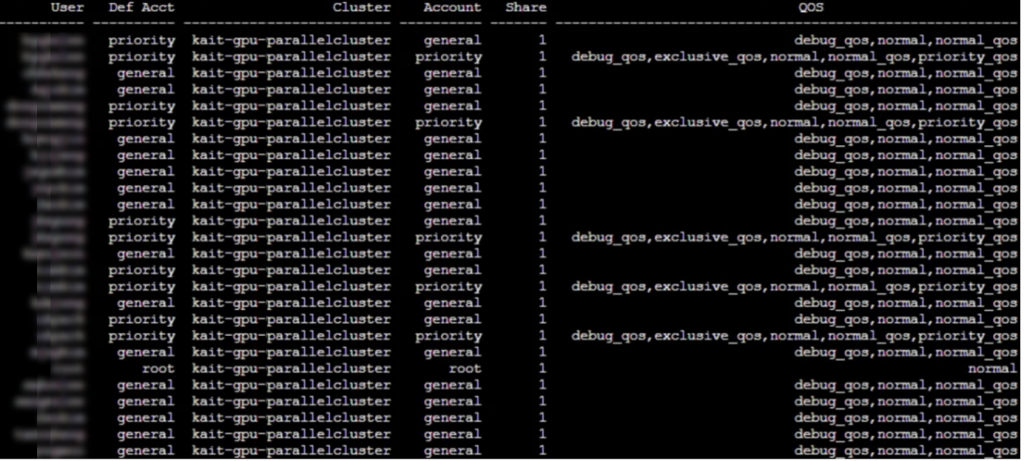
Feature 6 – Slurm User-Account-QOS Association Table
Conclusion
The blog shares operational insights from managing large-scale LLM training environments for Korea’s National AI projects using AWS ParallelCluster. The experience comes from providing 30 p5en.48xlarge instances to major Korean research institutions for an 8 months period. The key takeaways focus on practical ParallelCluster configuration strategies that go beyond basic setup, emphasizing stability and resource management in multi-user environments. We implemented a comprehensive resource management system by combining Slurm Partitions for queue organization with Slurm Accounting for enforcing user-specific resource limits and tracking usage. These approaches created a tiered access system with different job partitions (debug, normal, priority, and exclusive) that have varying time limits and priority levels. This prevented resource monopolization by individual researchers and ensured fair allocation across research teams. The implementation demonstrates how AWS ParallelCluster can be tailored with specific configuration options to meet the demanding requirements of large-scale AI research, providing stable GPU resource while maintaining operational efficiency in a shared environment.
In our next post we provide details on FSx for Lustre setup, how to leverage instance store caching, and other operational readiness (handling OOM errors, maintenance procedures, and event monitoring) in a large-scale LLM training environment.