AWS Cloud Financial Management
Automating filtered Cost and Usage Report exports with AWS Data Exports
AWS Data Exports lets you select which columns to include in your AWS Cost and Usage Reports (CUR 2.0) export. But filtering down rows to specific accounts or services still required post-processing. Whether you need to share cost data with a partner, isolate a program’s spend, or meet an audit scope, teams often build downstream pipelines with AWS Lambda, AWS Glue, or Amazon Athena. AWS Data Exports supports SQL-based row filtering at the source. Each destination receives a pre-filtered dataset including only the rows that match your criteria with no post-processing step required. In this post, you’ll learn how to filter CUR 2.0 data at the source using AWS Data Exports SQL query capabilities, so you get the data you need.
Use cases for CUR filtering
This solution addresses several common scenarios:
- Partner billing and chargeback: AWS Partners host customer workloads under one payer account. They export cost data for specific linked accounts to support invoicing and cost transparency.
- Enterprise program cost tracking: Large organizations run cross-functional programs, such as a data platform spanning multiple teams. They need isolated cost reporting without building custom pipelines.
- Compliance and audit: Regulatory requirements may dictate that cost data for specific business units or projects be stored in dedicated, access-controlled locations.
- Managed Service Provider (MSP) reporting: MSPs manage many customer accounts. Each customer needs a separate cost export delivered to its own Amazon Simple Storage Service (Amazon S3) location.
- Filtering beyond account IDs: This walkthrough demonstrates filtering by line_item_usage_account_id. The same approach extends to each column in the CUR 2.0 schema. With SQL WHERE clauses, you can filter by:
- Service (line_item_product_code)
- Region (product_region_code)
- Cost category
- Resource tags
- A combination of the above
Solution overview
This solution is a set of configuration files and a deployment script that create a filtered CUR 2.0 export. You list the accounts you want in a CSV file, define the columns you want in a SQL file, and run a single script. The script reads your account list, builds a SQL WHERE clause, and deploys an AWS CloudFormation stack that provisions the AWS Data Exports resource and the destination Amazon S3 bucket policy.
Because the filter is expressed in SQL and applied by AWS Data Exports itself, the export runs the query at the source. Only the filtered data is ever written to Amazon S3, so there’s no need for downstream filter step. As a result, storage costs drop, the architecture stays simpler, and stakeholders access only their own data.
The following diagram shows how the solution filters CUR 2.0 data at the source and delivers it to Amazon S3.
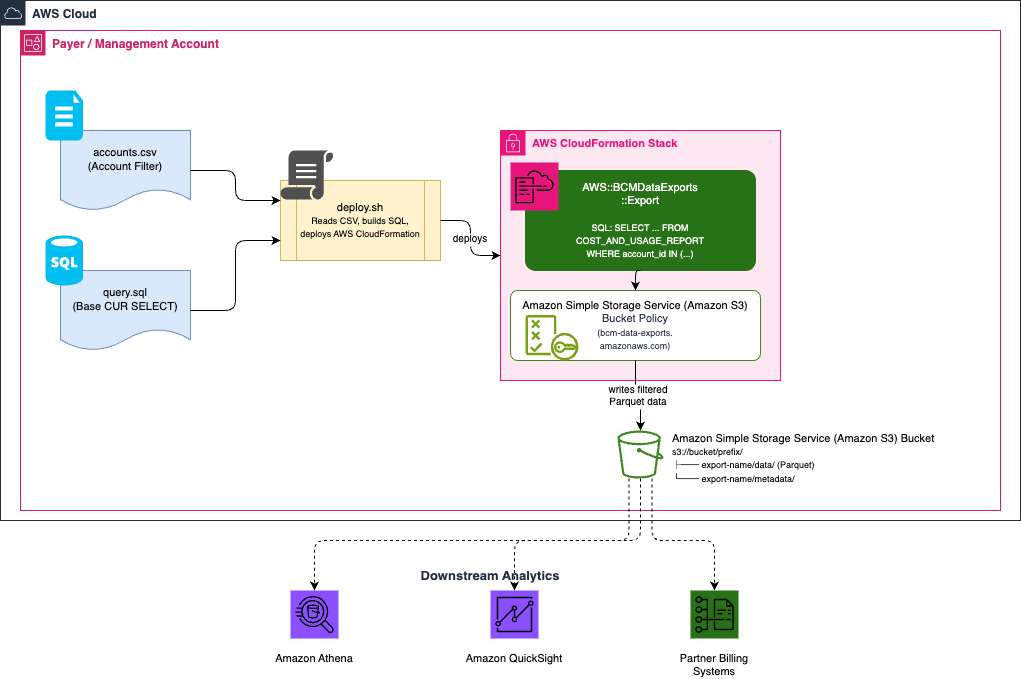
Figure 1: Architecture diagram showing account IDs from a CSV file used to build a filtered SQL query, which AWS Data Exports runs against CUR 2.0 data and delivers as filtered Parquet output to an Amazon S3 bucket.
The solution consists of the following key components:
- accounts.csv – Maintains the list of linked account IDs to include in the export
- query.sql – Base SQL SELECT statement with the CUR 2.0 columns
- deploy.sh – Orchestrates deployment which reads the CSV, constructs the WHERE clause, and deploys the AWS CloudFormation stack
- template.yaml – AWS CloudFormation template defining the AWS::BCMDataExports::Export resource and S3 bucket policy
Prerequisites
Before deploying, verify you have:
- AWS Command Line Interface (AWS CLI) v2 installed and configured (installation guide)
- Payer/management account credentials – Data Exports must be created from the payer account
- An S3 bucket (or let the script create one) in the target region
- Bash shell (Linux, macOS, or Windows Subsystem for Linux (WSL) on Windows)
Deployment steps
Follow these five steps to deploy the filtered export from your payer account.
Step 1: Clone the repository
git clone https://github.com/aws-samples/sample-cur-filtered-data-exports.git

          cd sample-cur-filtered-data-exports
Step 2: Define your account filter
Edit accounts.csv with the 12-digit AWS account IDs you want to include. One account ID per line, with a header row:
account_id

          111122223333

          444455556666

          777788889999
Step 3: (Optional) Customize the query
The included query.sql selects the available CUR 2.0 columns. You can customize it in the following ways:
- Filter by a different column – modify the WHERE clause logic in deploy.sh or add a static WHERE clause directly to query.sql
- Select fewer columns – edit query.sql to include only the columns you need, which reduces file size and query cost
- Combine filters – filter by account and service, for example, by appending AND line_item_product_code IN (‘AmazonEC2’, ‘AmazonS3’)
Step 4: Deploy
chmod +x deploy.sh
./deploy.sh \

          --bucket amzn-s3-demo-cur-export \

          --prefix partner-a/cur/ \

          --region us-east-1 \

          --granularity DAILY \

          --include-resources TRUE
The script performs the following steps:
- Creates the S3 bucket if it doesn’t exist
- Reads and validates account IDs from the CSV
- Constructs the full SQL query with the WHERE clause
- Deploys (or updates) the AWS CloudFormation stack
Step 5: Verify
After deployment, the script outputs the export Amazon Resource Name (ARN). You can also verify in the AWS Management Console: navigate to Billing and Cost Management, then select Data Exports. The first export delivery typically arrives within 24 hours. Subsequent deliveries follow the refresh cadence. The data updates synchronously as AWS billing data refreshes.
Updating the export
To add or remove accounts, follow these steps:
- Edit accounts.csv.
- Re-run ./deploy.sh with the same parameters.
- CloudFormation detects the query change and updates the Data Export in place.
This update happens with no downtime and no data loss.
Extending beyond account IDs
With SQL-based filtering, you can go beyond account IDs. Here are examples of other useful filters:
Filter by AWS service:
WHERE line_item_product_code IN ('AmazonEC2', 'AmazonRDS', 'AmazonS3')
Filter by region:
WHERE product_region_code IN ('us-east-1', 'eu-west-1')
Filter by cost category:
WHERE cost_category LIKE '%Production%'
Combine multiple filters:
WHERE line_item_usage_account_id IN ('111122223333', '444455556666')

          AND line_item_product_code = 'AmazonEC2'

          AND product_region_code = 'us-east-1'
To use these, modify the query.sql file or adjust the deploy.sh script to build your desired WHERE clause dynamically.
Cleanup
To remove all resources created by this solution:
# Delete the CloudFormation stackaws cloudformation delete-stack \
--stack-name cur-filtered-by-account \
--region us-east-1
# Wait for deletion to completeaws cloudformation wait stack-delete-complete \
--stack-name cur-filtered-by-account \
--region us-east-1
# (Optional) Empty and delete the S3 bucket if no longer neededaws s3 rm s3://amzn-s3-demo-cur-export --recursive
aws s3api delete-bucket --bucket amzn-s3-demo-cur-export --region us-east-1
Note: Deleting the stack removes the Data Export and the S3 bucket policy. Existing exported data in S3 is not deleted – you must remove it separately if desired.
Conclusion
With the SQL query capability of AWS Data Exports, you can deliver a filtered CUR 2.0 export from a single declarative resource, without a separate ETL pipeline. You filter the data at the source, so the filtering happens as part of the export. This solution provides the following benefits:
- Infrastructure-as-Code: fully managed via CloudFormation, version-controlled, and repeatable
- Flexible: filter by a specific CUR column, not just account ID
- Low-maintenance: update a CSV and re-deploy; no pipeline to monitor
- Cost-efficient: only filtered data lands in S3, reducing storage and downstream processing costs
Call to action
Ready to get started? Here’s what to do next:
Try it now – Clone the repository, add your account IDs, and deploy. You’ll have filtered CUR data flowing within 24 hours.
Extend the pattern – Need multiple exports for different customers or programs? Deploy the stack multiple times, each with different parameters. For example: –stack-name customer-a-export –accounts-file customer-a.csv.
Connect downstream analytics – Connect Amazon Athena to the Parquet output for ad-hoc queries, or feed it into Amazon Quick for dashboards.
Learn more about CUR 2.0 and Data Exports:
- AWS Data Exports User Guide
- CUR 2.0 Column Reference
- AWS::BCMDataExports::Export CloudFormation Reference
- Understanding Your AWS Cost and Usage Reports
- Share feedback – If you found this useful or have ideas for improvement, open an issue or pull request on the repository.